


How can other users view custom system reports?
By default, custom reports are private to the user who created them. To allow colleagues to view or edit a custom report, the creator must manually grant access.
Important: Before a user can be added as a viewer, an Administrator must ensure their User Permissions allow them to view "Custom Reports."
Administrator Setup (Permissions)
If a user does not appear in the "Report Viewers" list, check their profile settings:
*Must be a company admin to make these changes*
- Navigate to Settings > User Management > User Permissions.
- Select the user’s profile.
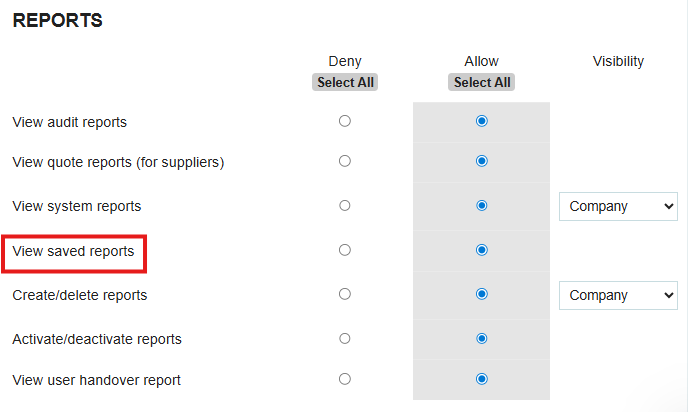
- Ensure the "View Saved Reports" permission is enabled.
- Verify that no branch or department restrictions are preventing the user from seeing the data within the report.
Sharing the Report
Once permissions are verified, the report creator can share the report by following these steps:
- Save the Report: You must save your custom report before the sharing options become available.
- Edit Report Settings: Locate your saved report in the Reports module and click the Edit (pencil) icon.
- Assign Viewers: * Find the "Report Viewers" section within the report settings.
- Select the specific users or user groups you wish to grant access to.
- Save Changes: Click Save to update the report. The report will now appear in the "Custom Reports" tab for the selected users.

Troubleshooting Tips
- Why can't I see the "Report Viewers" option? Ensure the report has been saved first. The sharing menu only appears on saved reports, not while initially building the criteria.
- Why is the data different for my colleague? Reports respect individual user permissions. If a colleague is restricted from seeing a specific department's spending, those line items will be hidden from them even if the report is shared.
Thank you! Your submission has been received!
Oops! Something went wrong while submitting the form.
.webp)
.png)


