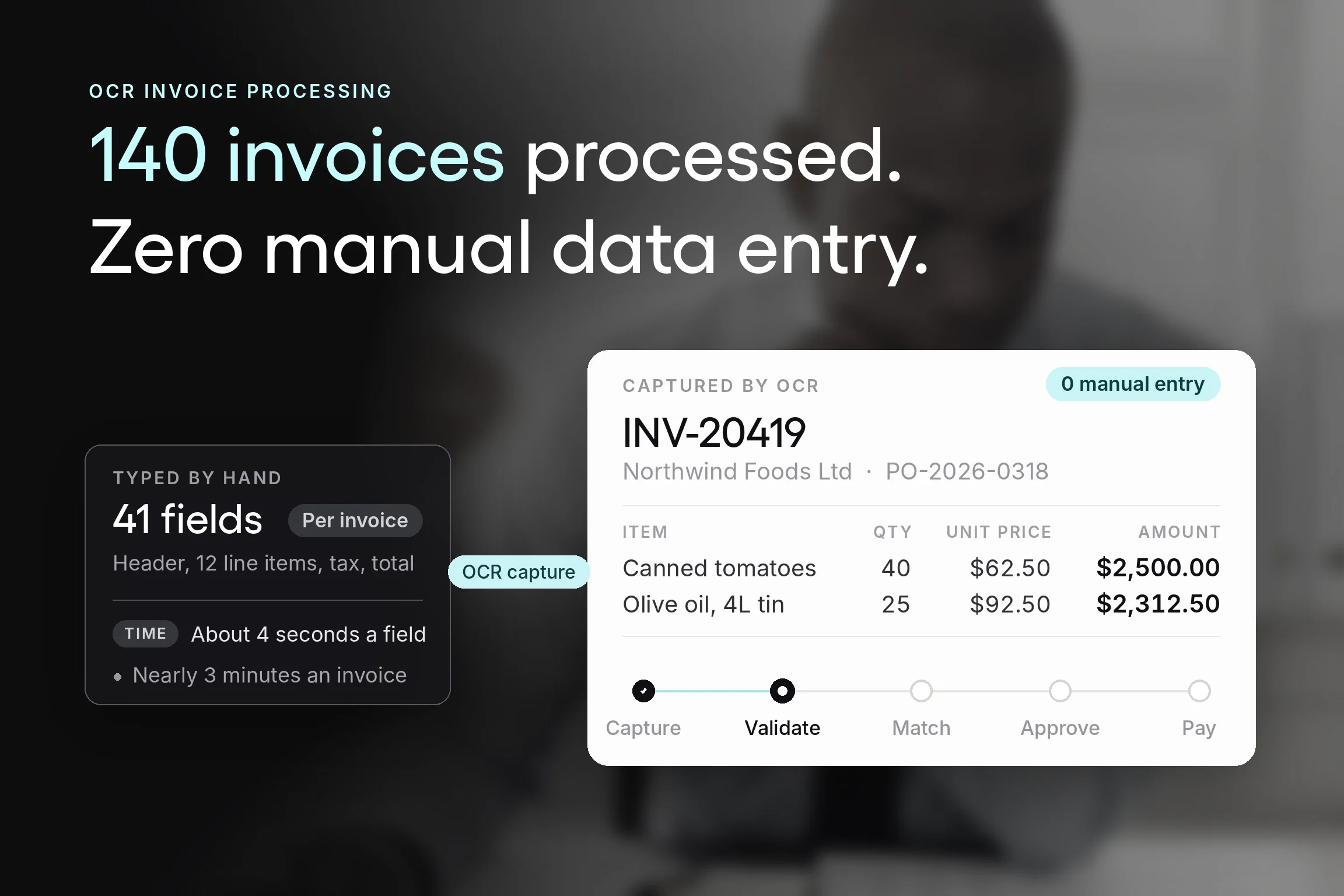


It's the last week of the month, and 140 supplier invoices are sitting in the AP inbox. Someone opens each one, reads it, and types it into the system field by field: supplier, invoice number, date, every line item, tax, total. Then someone checks it against the purchase order, if there's time.
That afternoon is why most AP leads start looking at OCR. Manual data entry is tedious, and it's a failure point where typos creep into invoice data. Beyond that, it also pulls your accounts payable team away from the checks that protect the business.
OCR invoice processing removes the typing. It reads each supplier invoice and turns it into structured data your procurement platform, accounting software, or ERP system can use. Whether it also removes risk depends on what happens to that data next.
This guide explains how OCR reads an invoice, what makes it more or less accurate on your suppliers' documents, how it differs from AI document capture, and the three checks every captured invoice should pass before it's paid.
Key Takeaways
- OCR solves typing, not paying. In an OCR workflow, data extraction is only the first step. A captured invoice still has to be validated, matched against the purchase order and receipt, and approved before it’s safe to pay.
- Reliable OCR data extraction depends as much on your setup as on the engine. Scan quality, invoice layouts, supplier field labels, and supplier name variations drive most corrections. Mapping labels and supplier aliases for your top suppliers before go-live cuts repeat corrections the most.
- A perfectly captured invoice can still be the wrong one to pay. In Ardent Partners’ 2025 benchmarks, the average invoice exception rate was 18.4%. OCR reads a short-shipped or fraudulent invoice as cleanly as a correct one, so validation and matching do the protecting.
- OCR isn’t obsolete. It’s now one layer of AI document capture. OCR still turns the page into text, while machine learning works out what each field means across new layouts and improves with corrections. Template-only OCR is what’s fading.
- Judge OCR by exceptions caught before payment. Invoices captured per hour measures speed, not control. Record corrections, exception rate, and cycle time before go-live so you can see whether faster capture is also catching more.
What is OCR invoice processing?
OCR invoice processing uses optical character recognition to read supplier invoices and turn them into structured data, such as supplier name, invoice number, invoice date, line items, tax, and totals, so AP teams don't have to type them into the accounting or ERP system.
However, invoice capture is only the first step. The data still needs validation and matching before payment.
Optical character recognition (OCR) converts digital images of a page into text a computer can read. It sees pixels and turns them into letters and numbers.
Invoice OCR goes a step further by identifying which text is which, recognizing that "INV-20419" is the invoice number and "$4,812.50" is the total.
That step, data extraction, is what turns a scanned page into invoice data a system can use.
You'll see the same idea described as invoice OCR, OCR for accounts payable, or AP invoice OCR. All of them mean reading invoice details off the document so nobody has to key them. OCR in invoice processing sits at the start of the wider invoice processing cycle, before matching, approval, and payment.
Picture a typical invoice at Priya's company.
She runs AP at a 160-employee food distributor and handles about 400 invoices a month from 90 suppliers, mostly emailed PDFs plus a few paper invoices from local growers.
One invoice from her produce supplier has a header block, 12 line items, tax, and a total. Keyed by hand, that's more than 40 invoice data fields. Captured with OCR, it becomes something to review, not retype.
Manual invoice processing vs. OCR: what changes
Reducing manual data entry doesn't remove the need for people. It changes what they spend their time on.
| Manual invoice processing | OCR invoice processing | |
|---|---|---|
| Getting the data in | Someone reads each invoice and types every field | OCR reads the document and extracts each field |
| Where errors come from | Typos, skipped lines, and transposed digits | Unclear scans, unfamiliar labels, and new invoice layouts |
| What the AP team does | Keys every invoice, then checks it | Reviews what the system flags as uncertain |
| What it scales with | Headcount | Invoice volume, with fewer corrections as setup improves |
| Record left behind | A typed entry, with the paper or PDF filed somewhere else | The original document attached to editable and searchable data |
Manual errors don't vanish with OCR, they move. Instead of a tired clerk transposing two digits, the risk becomes a smudged scan or a supplier that labels its invoice number in a way the system hasn't seen. Both are fixable, and the accuracy section below covers how.
Keep one line in mind for the rest of this guide: OCR reads; it doesn't judge.
How does OCR invoice processing work?
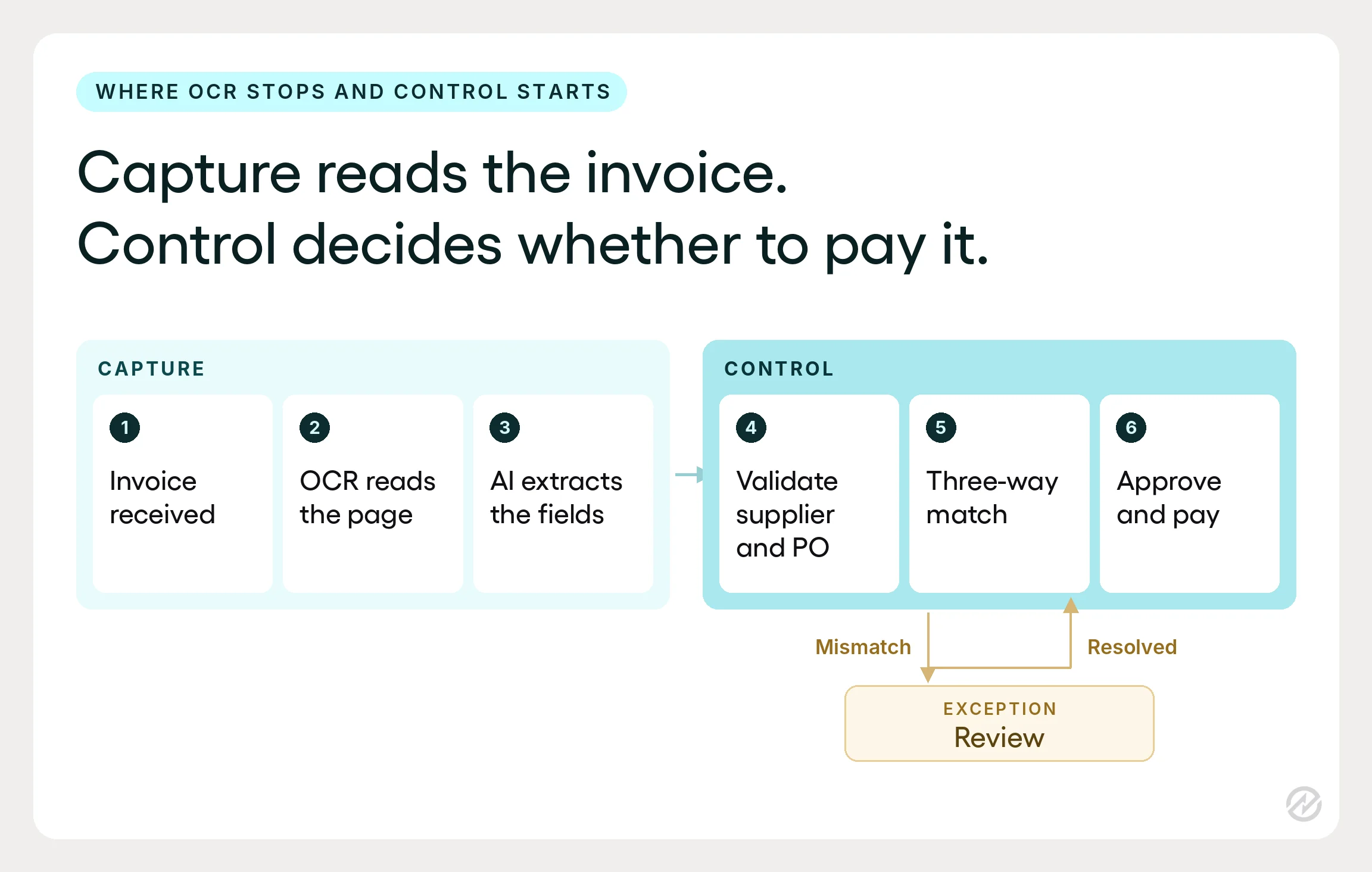
Using OCR for invoice processing works in five steps. The first three capture the data, and the last two decide whether that data can be trusted.
- The invoice arrives as a PDF, either uploaded or forwarded from an AP inbox.
- OCR converts the page image into text.
- Invoice data extraction identifies which text is the supplier, invoice number, dates, line items, and totals.
- The system validates the extracted data and links it to a supplier record and a purchase order.
- A person reviews anything flagged before the invoice moves on to matching and approval.
Here's how that looks for Priya.
Her produce supplier emails a PDF to the AP inbox, which forwards it to capture. Within seconds, OCR processing turns the page into text, and extraction pulls out the supplier name, invoice number, invoice date, PO number, all 12 line items, the tax, and the total.
The system then matches the supplier name to an existing supplier profile and the PO number to an open order. One quantity was printed faintly, so the system flags it, and someone on Priya's team checks that single field against the PDF instead of typing the whole invoice.
What data from invoices OCR captures: header fields vs. line items
Header fields describe the invoice as a whole. They include the supplier name and address, invoice number, invoice date, due date, PO number, currency, tax, and total.
Line items describe what was bought, with a description, quantity, unit price, and line total on each row. Some OCR software captures only the header, which is enough to post an invoice to your accounting software but not enough to verify it.
Purchase orders and receipts are recorded line by line, so the invoice needs to be read the same way. Invoice line item OCR is what makes line-level matching possible. A short-shipped case of tomatoes then shows up as a mismatch on one line, instead of disappearing into a total that looks right.
Invoice scanning: what OCR needs from a paper invoice
Paper invoices still turn up, usually from small local suppliers. OCR reads scanned invoices as well as digital invoices, as long as the paper is scanned to PDF, and the quality of that scan matters more than most teams expect.
A straight, flat, high-contrast scan gives the engine clean characters to work with. A page photographed at an angle, a crumpled delivery copy, or a faint dot-matrix print forces the engine to guess.
Most AP teams don't need special invoice scanning hardware for this. An ordinary office scanner and the habit of scanning pages flat solve most problems with scanned paper documents.
Before you go further, pull five recent invoices, including one on paper, and list every field your team types today. That list is what your OCR setup needs to capture.
How accurate is invoice OCR?
Invoice OCR accuracy depends more on your suppliers' documents than on the engine itself. Scan quality, the number of different invoice formats you receive, the labels each supplier uses for its fields, and how suppliers write their own names all affect the result. AI-assisted capture also gets more accurate as your team corrects it.
That's why a single accuracy percentage on a vendor's website tells you very little about the data accuracy you'll see. An engine tested on clean, standard invoices will score well on clean, standard invoices.
The number that matters is how it performs on your supplier mix, and you'll only learn that by running your own invoices through it.
Why invoice data gets misread
Most misreads trace back to one of four causes.
- A poor scan blurs characters until a 5 looks like an S.
- A new layout puts the total somewhere the system didn't expect.
- A supplier uses its own label for a standard field, such as invoice numbers or PO references.
- The supplier name on the invoice doesn't match the name in your supplier records.
The first two are about the document, and layout is the harder of the two. OCR accuracy is lower on non-standard invoice layouts, such as line-item tables that run across two pages, totals tucked under a footnote, or invoices built in a spreadsheet and exported to PDF. Template-based OCR has the most trouble with these, because it expects each field in a fixed position.
The last two are about meaning, and they cause the most repeat corrections because the same supplier sends the same label every month.
Priya has one of those. Her packaging supplier labels its invoice number "Billing Code" and writes its own name three different ways across its invoices, so her team fixes the same two fields on every one.
Two setup levers that make OCR processing more accurate
Some accuracy is configuration, not technology. When a supplier calls its invoice number "Billing Code," no engine knows that's your invoice number until someone tells it.
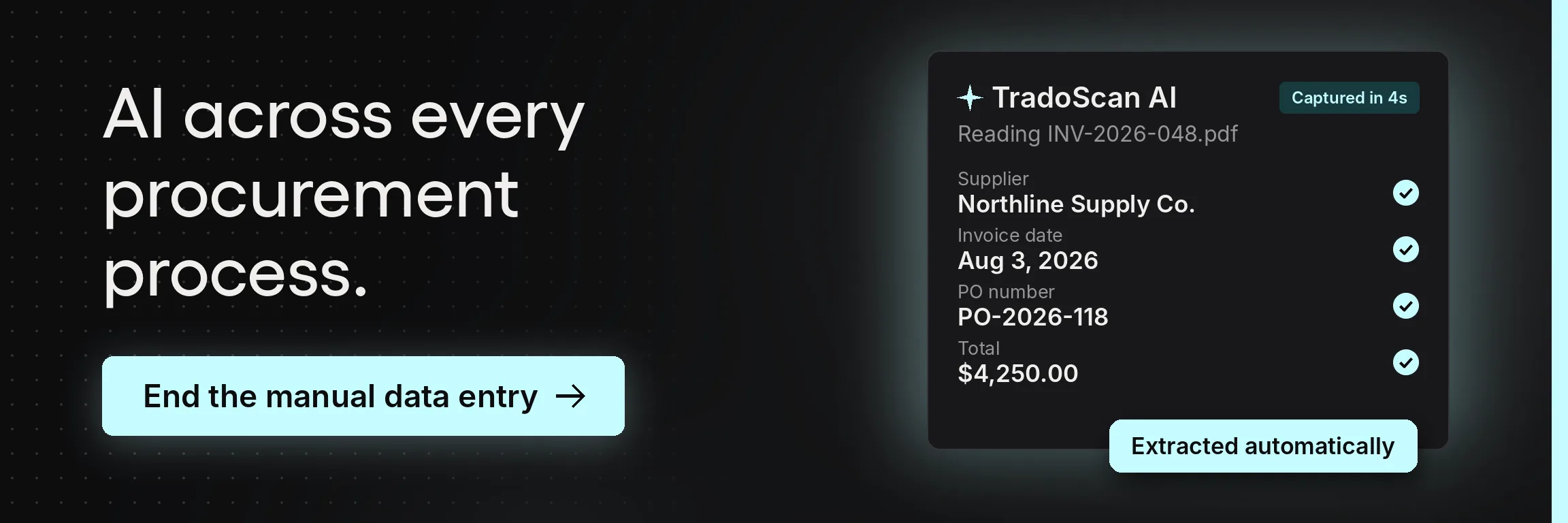
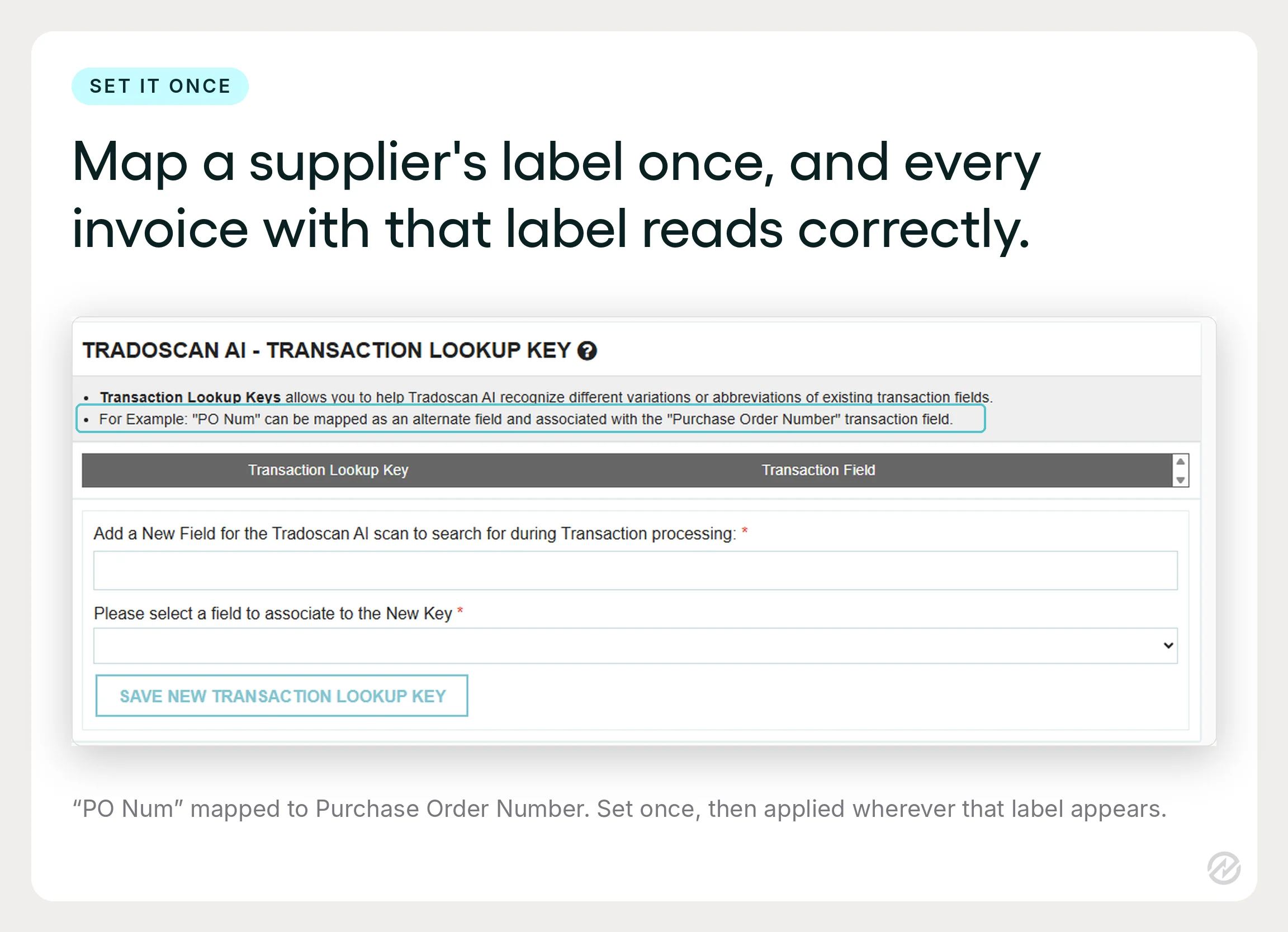
In Tradogram's invoice capture software, TradoScan AI, the Transaction Lookup Key does that job. It maps a supplier's alternative labels to the right field, so "Billing Code" or "Reference ID" lands in Invoice Number and "PO Num" lands in Purchase Order Number.
You set the mapping once, and every future invoice with that label is read correctly, increasing overall accuracy.
Supplier Aliasing does the same for names. It maps alternative names and misspellings to one supplier profile, so "Northwind Foods Ltd," "Northwind," and "NWF Ltd." all attach to the same supplier and its purchase orders. Without it, a slightly different name can create a duplicate supplier or leave an invoice unlinked to its PO.
Between them, those two settings turn Priya's repeat corrections into accurate data on the first pass.
How AI-assisted capture learns from corrections
TradoScan AI combines OCR with AI-assisted extraction to pull invoice data from header fields and line items, and it learns from your team's corrections over time.
Each fix makes the next invoice from that supplier more likely to come through the right way. Accuracy rises with use, without anyone building or maintaining a template for each supplier.
That has a practical consequence for go-live. The first month is when corrections are highest, so plan for more review time early and expect it to reduce as the system sees more of your invoices.
Handwriting, languages, and the limits of OCR
OCR technology is strongest with printed text. TradoScan AI reads printed text in 32 languages, so suppliers abroad don't fall back to manual entry, and it reads handwriting in five: English, French, German, Italian, and Simplified Chinese.
Handwriting is still harder to read reliably than print, especially on a poor scan. If some of your local suppliers write invoices by hand, those are the documents to watch most closely in your first weeks.
OCR vs. AI document capture: is OCR obsolete?
No. OCR is now one layer of AI document capture, not the whole tool. OCR still converts the page into text, and AI works out what each piece of text means across different layouts, without a template for each supplier. That's how OCR invoice processing works in most modern tools. What's fading is template-only OCR.
The difference matters because the two approaches fail in different places. Template OCR is predictable on the layouts it knows and brittle on everything else. AI document capture handles new layouts better and improves as your team corrects it, but it still needs a person to review what it isn't sure about.
How template-based OCR systems work
Older OCR systems rely on templates. Someone draws zones on a sample invoice to tell the system that the invoice number sits in the top right, the total sits bottom right, and line items run down the middle. Every invoice from that supplier is then read against its template.
That works well for a few suppliers who never change their invoices. It breaks when a supplier redesigns its layout, adds a column, or sends a credit note in a different format, and someone has to build or repair a template each time. With 90 suppliers, Priya's team would spend more time maintaining templates than they saved on typing.
How machine learning changes invoice capture
AI document capture, also called intelligent document processing (IDP), uses machine learning to automatically extract data by reading an invoice the way a person does. It looks at the words around a value and where the value sits, so it can recognize an invoice number on a layout it has never seen before. It doesn't need a template per supplier.
These systems also learn. When someone corrects a field, the correction feeds back into how the next invoice is read. Many also score their confidence in each field and send low-confidence items to a person, so review time goes where it's needed instead of being spread across every invoice.
| Template OCR | AI document capture | |
|---|---|---|
| How it finds fields | Fixed zones drawn on a sample invoice | Context, labels, and position on the page |
| New supplier layouts | Needs a new template | Usually read without setup |
| Line items | Breaks easily on long or multi-page tables | Reads variable-length tables |
| Learning | None; templates are edited by hand | Improves as people correct it |
| Handwriting | Rarely supported | Supported in some languages |
| Ongoing maintenance | A template for every supplier and format change | Label and name mapping, plus review of flagged fields |
Expect a learning curve with any OCR solution. In a 2025 Gartner survey of 183 CFOs and finance leaders, AP automation was the second most common AI use case among finance teams using AI, at 37%. Yet 91% of those teams reported low or moderate initial impact.
That's normal for any system that learns from your documents, and it's why the first month needs more review time than the sixth.
Where OCR in invoice processing falls short
OCR in invoice processing falls short in two ways, and only one involves reading.
- An extraction error means a value was misread or missed.
- A business discrepancy means every value was read correctly, but the invoice still doesn't match what was ordered or received.
Capture inside an automated procurement platform that already holds the PO and the receipt can deal with both, because matching happens in the same place the data lands.
| Problem | What happens | Typical cause | What catches it |
|---|---|---|---|
| Extraction error | A value is misread or left out | Poor scan quality, an unfamiliar layout, or a long line-item table | Field-level review of flagged data |
| Business discrepancy | The value is read correctly but doesn't match purchasing records | Wrong price, wrong quantity, or goods that never arrived | Matching against the PO and the receipt |
Accurate capture, wrong invoice
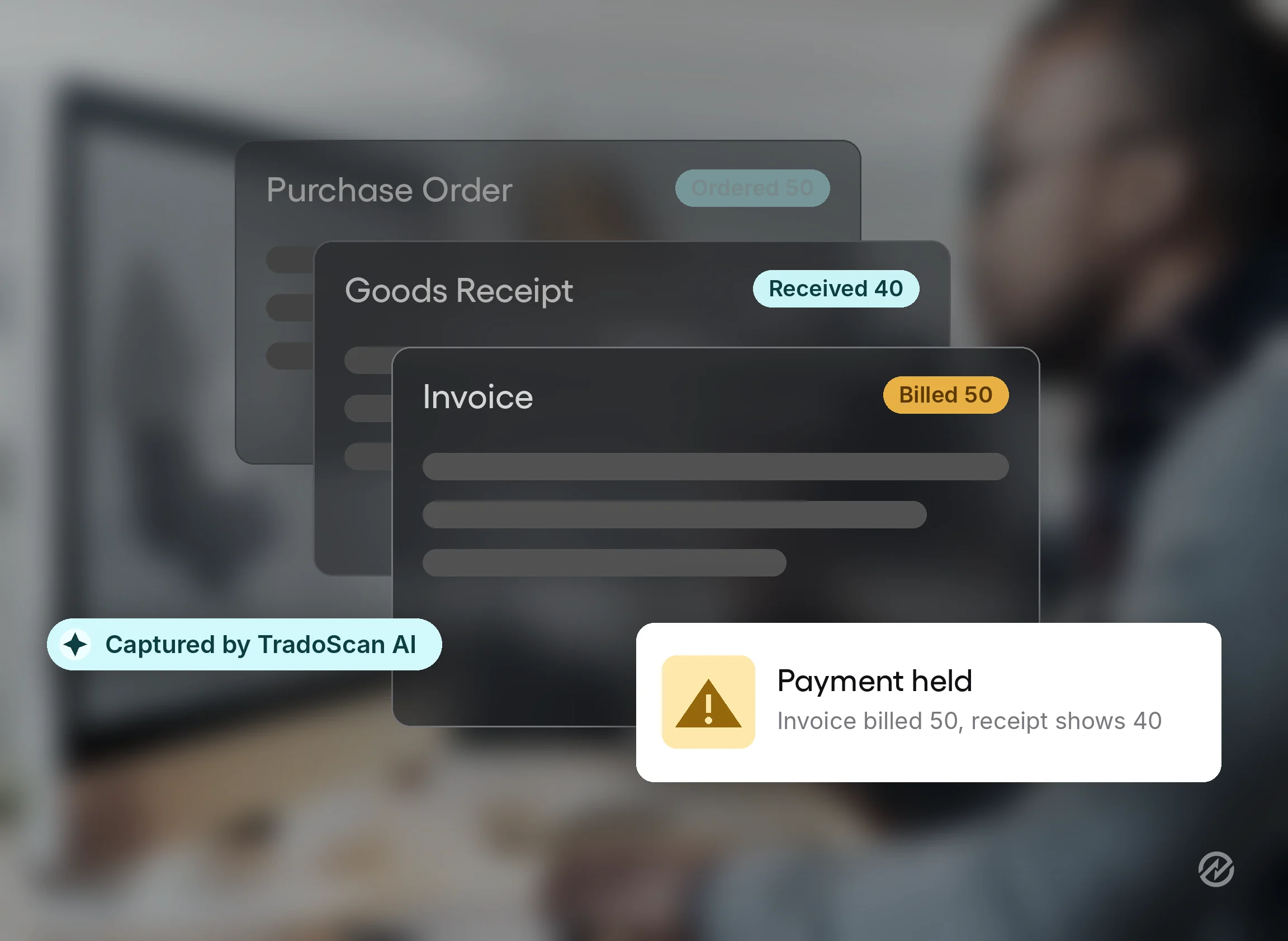
Priya's team ordered 50 cases of canned tomatoes from a regular supplier. The delivery that arrived held 40, and the warehouse recorded 40 on the receipt. The supplier's invoice billed for all 50.
OCR read that invoice perfectly, including the quantity of 50 and the corresponding total. Capture did its job, and paying the captured invoice would still have meant paying for 10 cases that never arrived. Only comparing the invoice with the purchase order and the receipt could catch it.
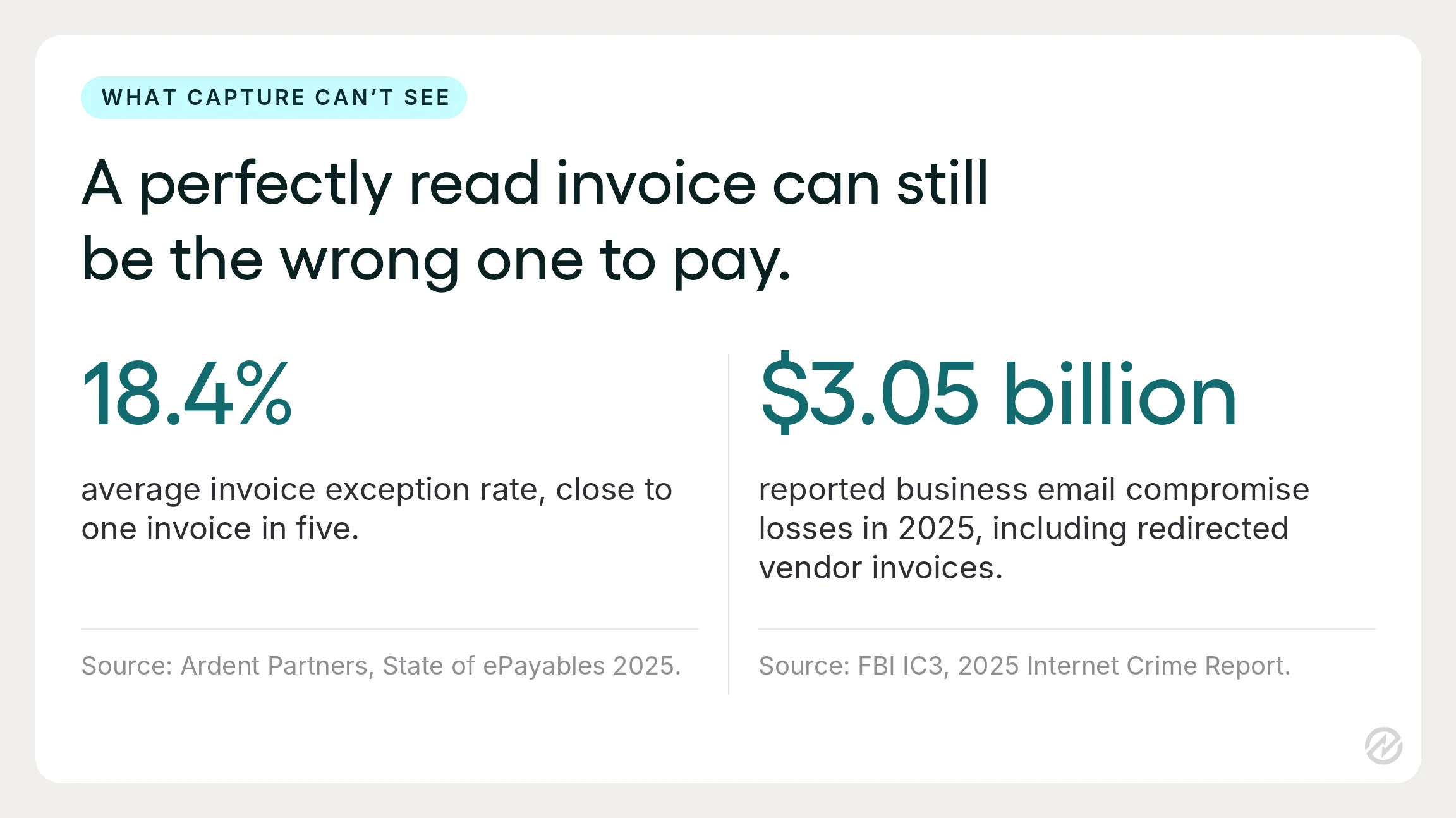
That's not a rare case. In Ardent Partners' 2025 benchmarks, the average invoice exception rate was 18.4%, close to one in five invoices. Faster capture without matching just delivers those exceptions to the payment run sooner.
The fraud blind spot
The same logic applies to invoices that should never be paid. A fraudulent invoice with changed bank details reads as cleanly as a real one, because OCR captures what's on the page and has no way to know the account number is new.
Business email compromise is the most common version. The FBI's 2025 Internet Crime Report recorded 24,768 business email compromise complaints and $3.05 billion in reported losses, including schemes that redirect legitimate vendor invoices. Those figures are self-reported, so the real total is likely higher.
What stops a fraudulent or incorrect invoice is validating extracted data before anyone acts on it. Validation rules confirm the supplier is already on file, the invoice number hasn't been paid before, and the bank details match the supplier record.
Validated data then moves on to matching against the PO and the receipt. Always confirm a change to a supplier's bank account directly with the supplier, using contact details you already hold, never the ones on the invoice.
From capture to payment: the accounts payable workflow after OCR
After capture, an invoice moves through a series of checks before anyone pays it. The system validates the extracted data, matches it against the purchase order and receipt, clears any exceptions, approves it, syncs it to your accounting system, and only then pays it. Each step has its own owner and its own reason to stop the invoice.
| Step | What gets checked | Who handles an exception | What moves it forward |
|---|---|---|---|
| 1. Extract | Header fields and line items are read from the document | AP reviews any field the system flags | Every required field is captured |
| 2. Validate | The supplier is on file, the invoice number is new, and bank details match the supplier record | AP, with procurement for supplier record issues | The data passes your validation rules |
| 3. Match | Invoice price and quantity against the PO, and quantity against the receipt | AP routes the mismatch to the buyer or the receiver | Invoice, PO, and receipt agree |
| 4. Resolve exceptions | Price differences, quantity gaps, and missing receipts | The buyer for price, the receiver for quantity, the supplier for a credit note | A corrected invoice, a credit note, or a documented decision |
| 5. Approve | The invoice against budget and approval rules | The approver set by your routing rules | Required approvals are recorded |
| 6. Sync | The approved invoice is posted to the accounting or ERP system | AP or finance | The record posts cleanly |
| 7. Pay and retain | Payment is scheduled on the supplier's terms | AP or finance | Payment is sent, and the invoice, match, approval, and payment stay linked |
Priya's short-shipped tomatoes show how this plays out.
The invoice cleared validation, then stopped at the match because it billed 50 cases against a receipt for 40. The exception went to the buyer, who asked the supplier for a credit note covering the missing 10.
Once the credit note arrived, the invoice was approved for 40 cases, posted to accounting, and paid on terms, early enough to keep the supplier's early payment discount.
Nothing in that sequence needed anyone to retype the invoice. Accounts payable departments that process invoices this way spend their time making decisions, not entering invoice data.
How Tradogram handles the steps after capture
In Tradogram, those steps sit in the same system as the PO and the receipt. TradoScan AI extracts header and line-item details from emailed or uploaded invoices, and invoice matching software compares each invoice against its purchase order and receiving record, flagging price and quantity discrepancies.
Nothing proceeds to payment until an exception is resolved.
Approved invoices then follow your purchase approval software rules, routed by department or spend, and the approved records sync with accounting systems such as QuickBooks, Xero, NetSuite, Sage, and Microsoft Dynamics 365 Business Central. TradoPay handles supplier payments, and the invoice, match result, approval, and payment stay on one record for your audit trail.
For a closer look at how the comparison itself works, see our guide to three-way match in accounts payable.
When there's no PO to match
Some invoices can't be three-way matched. Non-PO invoices, such as utilities, subscriptions, or a one-off service, have no purchase order to compare against. They shouldn't go straight to payment just because OCR captured them cleanly. Route them to the budget owner for review and approval instead.
Service invoices often use a two-way match, comparing the invoice against the PO alone, because there's no delivery to record. The person who used the service confirms delivery before the invoice is approved.
How to implement OCR invoice processing
To implement OCR invoice processing well, set up the inputs before you switch anything on. Most early frustration with OCR comes from what's fed into it, not from the engine itself. Start here, in this order.
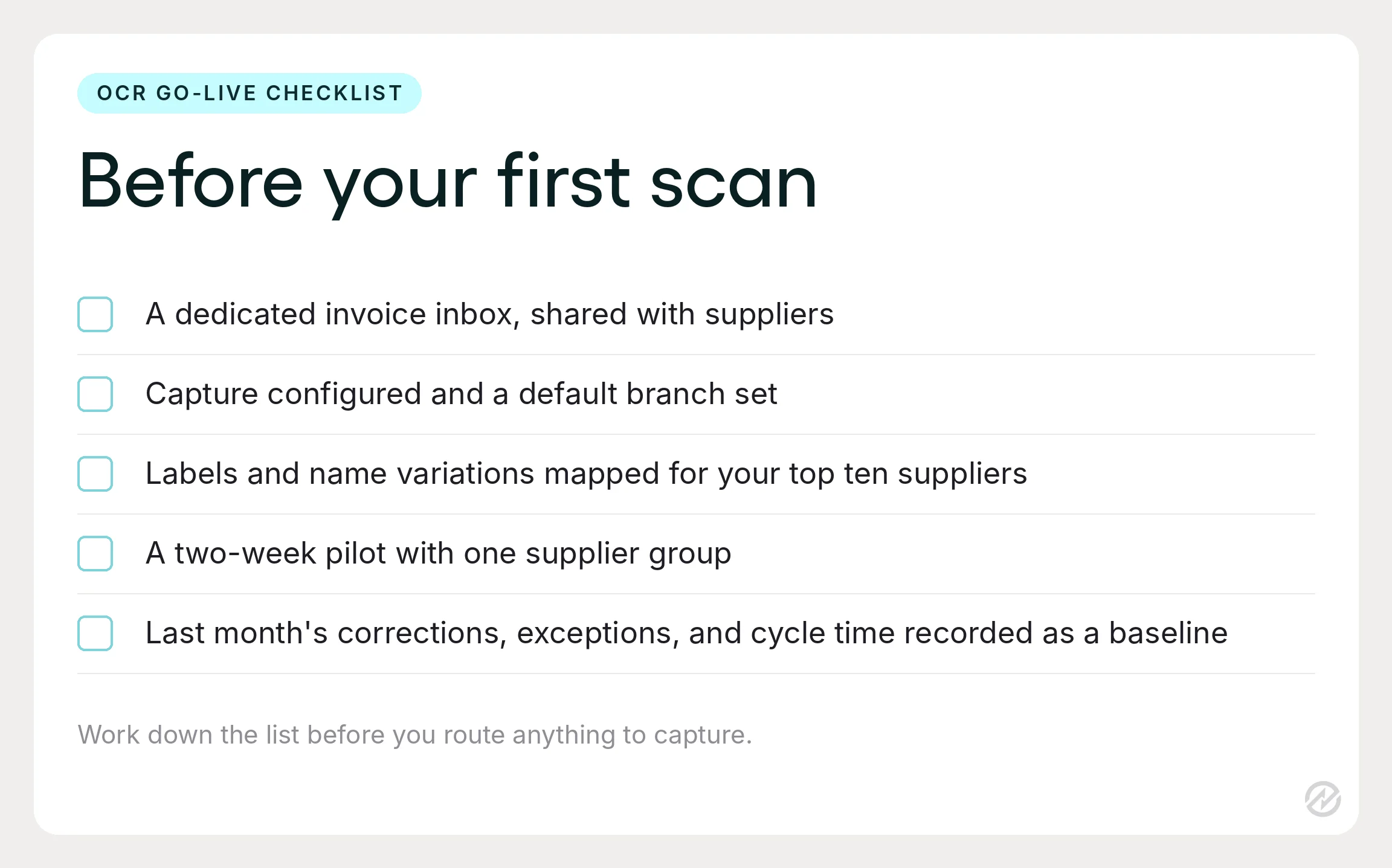
1. Give invoices their own inbox
Capture tools treat whatever arrives as an invoice. Point a shared finance inbox at OCR, and you'll get statements, remittance advice, and marketing PDFs captured as invoices too. Create a dedicated invoice address, ask suppliers to use it, and route only that inbox to capture.
In Tradogram, every PDF sent to the configured inbox is treated as an invoice. Invoices can be forwarded automatically from that inbox, forwarded one at a time to ocr@tradogram.com, or uploaded directly.
2. Finish the setup before the first scan
Capture needs a few settings in place before it can file anything correctly. In Tradogram, that means configuring TradoScan AI and setting a Default Branch first. Invoices must arrive as PDFs, including scanned paper invoices, and manual uploads allow up to 10 files at a time, each up to 10 MB.
3. Map labels and supplier names for your top suppliers
Pull recent invoices from your ten highest-volume suppliers and list every label and name variation they use. Then set those up before go-live, using the label mapping and supplier aliasing covered in the accuracy section. This is the step that does the most to cut first-month corrections, because those ten suppliers usually send the bulk of your invoices.
“The one step I never let a customer skip is mapping their top suppliers’ invoice labels and name variations before go-live. It’s an afternoon of setup, and it saves the AP team from fixing the same fields on every invoice for the first month,” says Mike Rowsell, Customer Success Manager at Tradogram.
4. Pilot before you route everything
Start with one supplier group or one location for two weeks. Let the system extract invoice data, have the team review what it flags, and note which corrections repeat. Repeat corrections usually point to a label or supplier name that still needs mapping, and fixing them during the pilot keeps them out of your month-end close.
5. Record your baseline first
Before go-live, write down last month's corrections per invoice, exception rate, and cycle time. Without those numbers, you'll know OCR invoice scanning feels faster but not whether it's catching more before payment.
Change is easier when the team knows what's coming. Tell AP staff their job is moving from typing to reviewing, and show them the first flagged invoice together before you ask them to work through the queue alone.
How to choose the right OCR solution for automated invoice processing
The right OCR solution reads your suppliers' invoices well and hands the data to something that checks it. No single OCR software is best for every AP team, because the answer depends on your invoice volume, supplier mix, and what happens after capture. Judge each option on your own invoices, against the same questions.
What to look for in OCR software for invoice processing
Does it need a template for each supplier? Template-based tools work until a supplier changes its layout. AI-assisted invoice OCR software uses automatic data extraction to read new layouts without setup, which matters once you have more than a handful of suppliers.
Does it read line items, or only the header? Header capture is enough to post an invoice. Line-item capture is what lets you match it against the purchase order line by line.
How does it learn? Ask what happens when your team corrects a field. Good accounts payable OCR software uses those corrections so the same mistake becomes less likely next time, without anyone editing a template.
Can you map your suppliers' labels and names? Some of the most common corrections come from suppliers using their own field labels or several versions of their own name. Look for a way to set those mappings once.
What happens to the data after capture? This is the question that separates tools most. Standalone invoice scanning software stops at extraction and leaves validation and matching to you. Invoice processing software that sits alongside your purchase orders and receipts can check each invoice before it reaches the payment run.
Does it connect to your accounting system? Captured and approved invoices need to land in your accounting or ERP system without being keyed again. Confirm which systems it connects to and what syncs.
How to test OCR invoice solutions on your own documents
Vendor demos of OCR invoice processing software use clean sample invoices. Ask to run 20 or 30 of your own instead, including your messiest scans, a supplier with an unusual layout, a multi-page invoice, and one with a short-shipped line.
Then compare how many fields needed correcting, whether the line items came through, and what each tool did with the invoice that didn't match its PO. The last answer tells you more than any accuracy claim on the vendor's website.
Is OCR invoice processing worth it for accounts payable?
OCR invoice processing is worth it when manual keying takes up a real share of your AP team's time, and invoices arrive from many suppliers in different layouts. If you receive a few dozen invoices a month from a handful of suppliers, careful manual entry and matching may still be enough.
Priya's numbers make the case for her team. With about 400 invoices a month and more than 40 fields on a typical invoice, her team keyed well over 10,000 fields a month before anyone checked a single one against a PO.
Broader benchmarks point to the same conclusion. In Ardent Partners' 2025 benchmarks, the average invoice cost $9.84 to process and took 8.2 days. Best-in-class AP teams processed invoices 79% faster, at 79% lower cost, with exception rates 47% lower than the rest of the market. APQC's Open Standards Benchmarking puts the median time from invoice receipt to payment at 15.0 days.
Those best-in-class gains don't come from OCR alone. They come from automated invoice processing where capture, matching, and approval work together as one efficient invoice processing workflow. That's where the benefits of OCR invoice processing add up, because typing time saved at the start isn't lost to rework at the end.
What to measure after go-live
Track four numbers each month, starting from the baseline you recorded before go-live.
- Corrections per invoice, which should fall as label mappings and supplier aliases take effect.
- Exception rate, and how many exceptions were caught before payment instead of after.
- Invoice cycle time, from receipt to approval.
- Days from invoice receipt to payment, which shows whether faster approval is reaching your suppliers.
If corrections fall but exceptions caught before payment don't rise, capture is working, but control isn't. That's the signal to look at matching and routing, not the OCR engine.
OCR takes the typing away. Matching keeps the payments right.
Go back to those 140 invoices at month-end. With OCR in place, nobody types them. Each one is read in seconds, matched against the PO and the receipt, and held if it doesn’t match until someone resolves it.
That's the real value of OCR invoice processing. Capture removes the typing. What happens next decides whether the right invoices get paid.
See how TradoScan AI reads your suppliers' invoices in seconds, learns from every correction, and holds anything that doesn't match the PO and receipt until someone checks it. Want to see it on your own invoices? Book a demo and bring a few from your trickiest suppliers.