


How to Quickly Match or Associate Items and Suppliers
In Tradogram, creating a "link" between an item and a supplier is essential for efficient procurement. These associations allow you to filter and select the correct items from your database when creating new requisitions or purchase orders.
Why Associations Matter
Associations are a critical factor in the transaction creation process. If you begin a transaction by selecting a supplier, only the items associated with that supplier will be available to add from your database. Likewise, items must be linked to suppliers to use the "sort by supplier" feature effectively.
Using the Bulk Association Tool
To manage multiple links at once, use the following steps:
- Navigate to the Tool: Click on either the Items or Suppliers tab in the left toolbar.
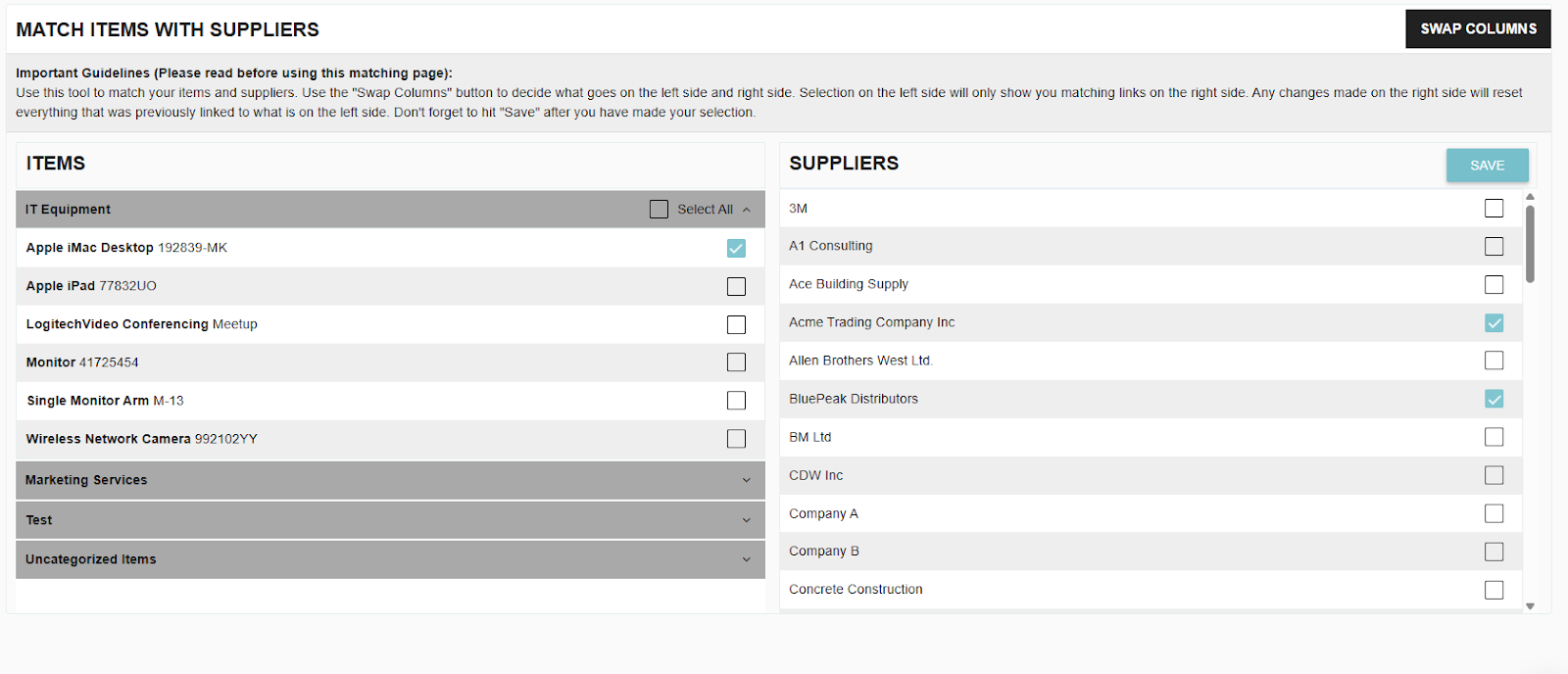
- Open the Interface: Click the More actions button at the top right of the page, and select Match Items with Suppliers.


- Set Your Primary Column: Use the Swap Columns button to decide if you want to select Items or Suppliers in the left-hand column.
- Select Your Targets: Check the boxes for the items (or suppliers) in the left column that you wish to update. Existing associations will automatically appear as checked boxes in the right-hand column.
- Adjust Links: Select or deselect the checkboxes in the right-hand column to create or remove the desired links.
- Save Changes: Once you have verified your selections, click Save above the right-hand column to confirm the new associations.
⚠️ Critical Warning
Exercise extreme caution when using this feature. Adjustments made in the right-hand column will irreversibly overwrite any existing associations for the targets selected in the left-hand column.
.webp)
.png)


