


How can items have prices entered per-supplier on the system?
You can associate specific pricing and identification numbers for an item with one or more suppliers. This allows you to track different prices for the same item across your vendor base.
Prerequisite: For this functionality to work, the branch setting "Associate database items directly with suppliers" must be turned on.

Step-by-Step Guide
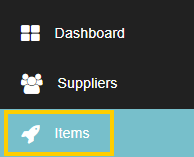
- Click the "Items" tab from the toolbar on the left.
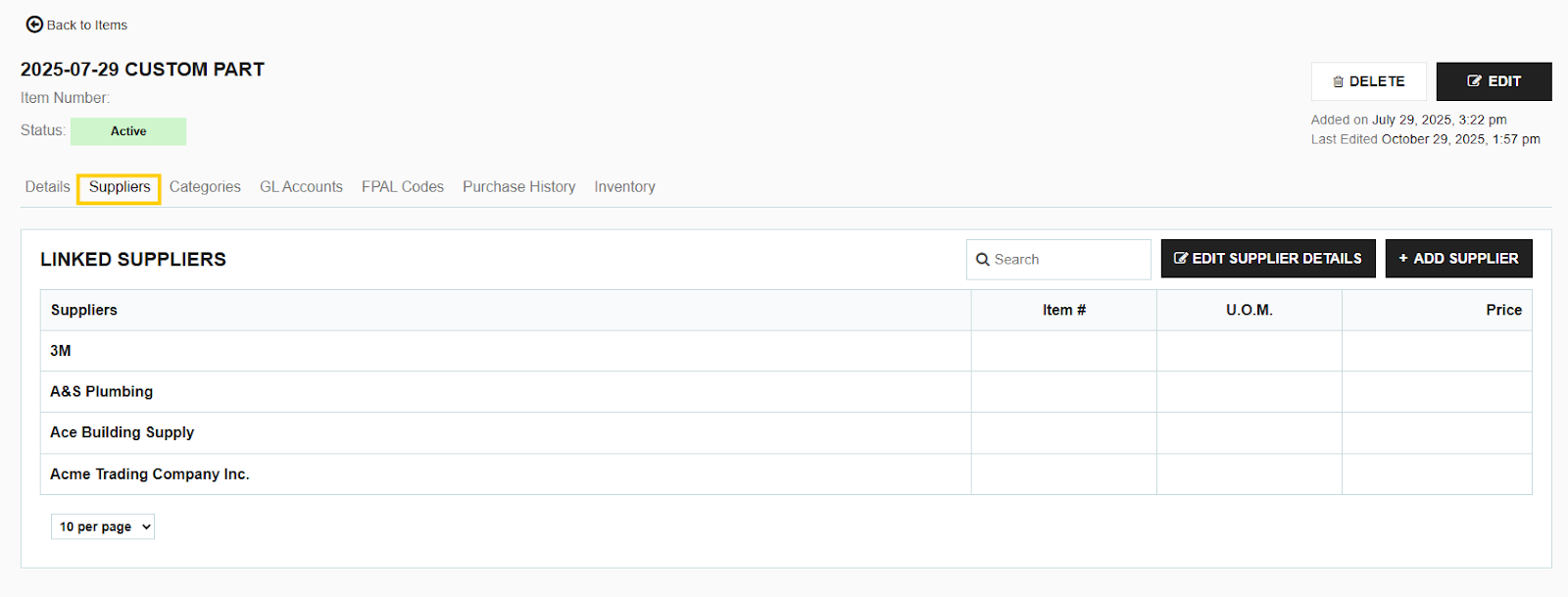
- Select an item from your database to open its profile. Navigate to the Suppliers section.
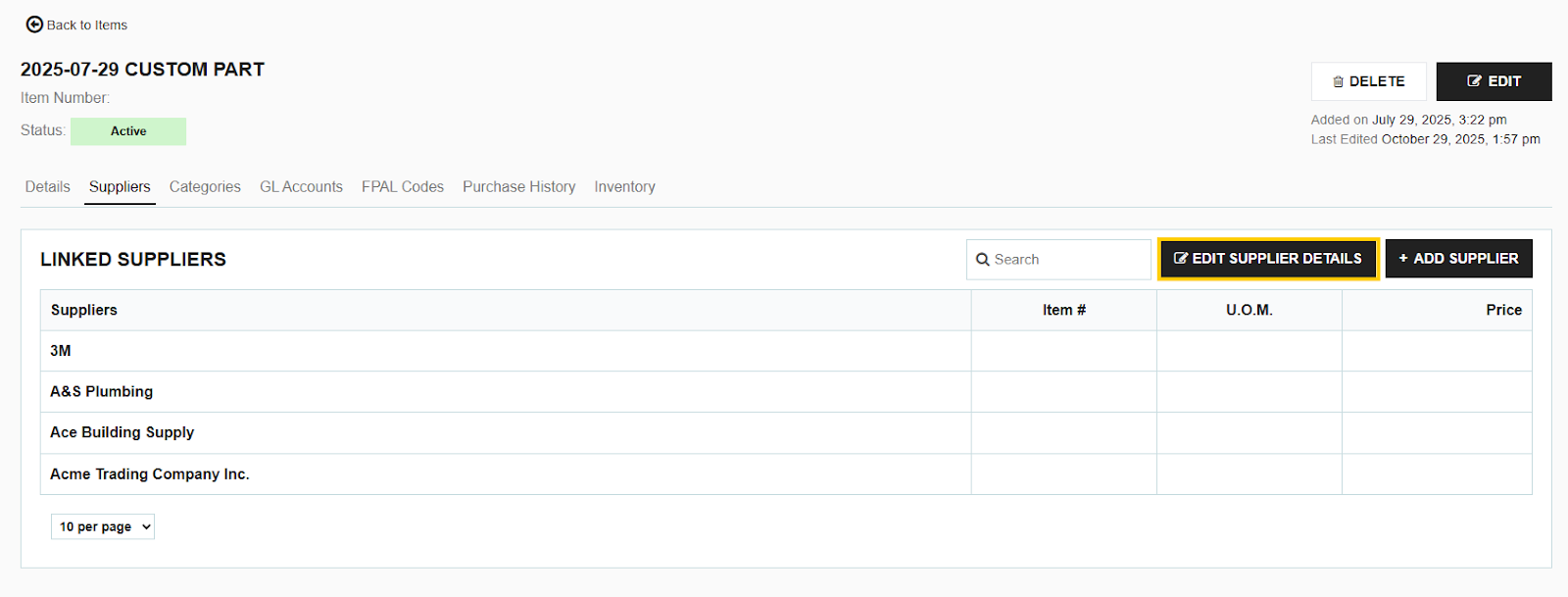
- Click the "Edit Supplier Details" button located above the list of suppliers. This will expand the list of suppliers already associated with that item.
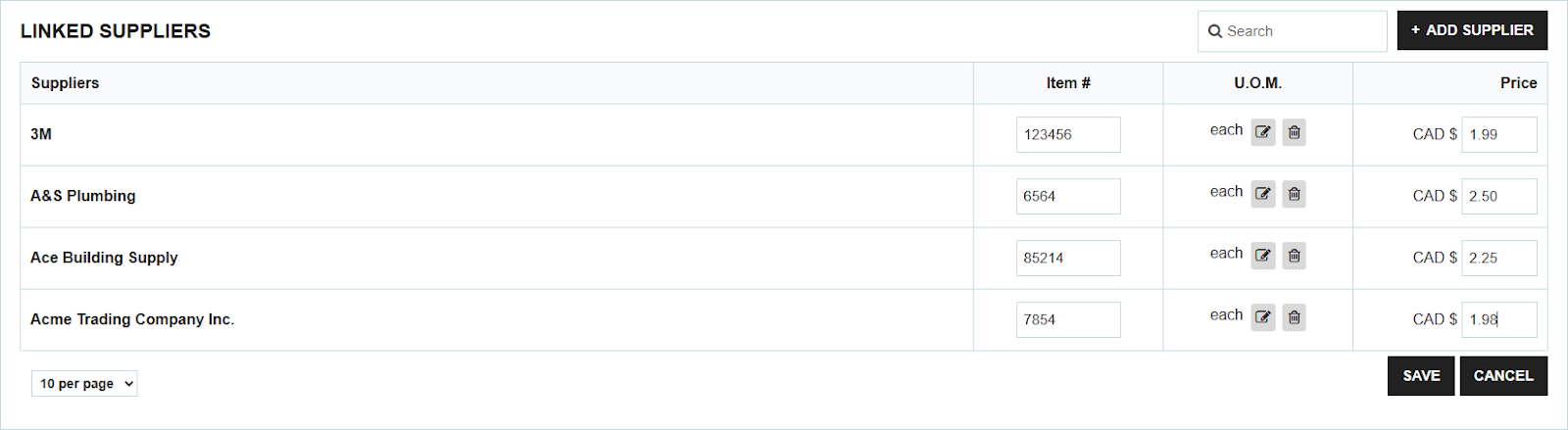
- For each desired supplier, enter the specific item identification numbers and pricing details.
- Scroll to the bottom of the list and click the "Save" button to confirm and update the per-supplier item details.
How to Use Per-Supplier Prices on a Purchase Order (PO)
Once you have set up per-supplier pricing, the system will automatically pull the correct price when you create a transaction:
- Start creating a new Purchase Order (PO).
- Select the Supplier first.
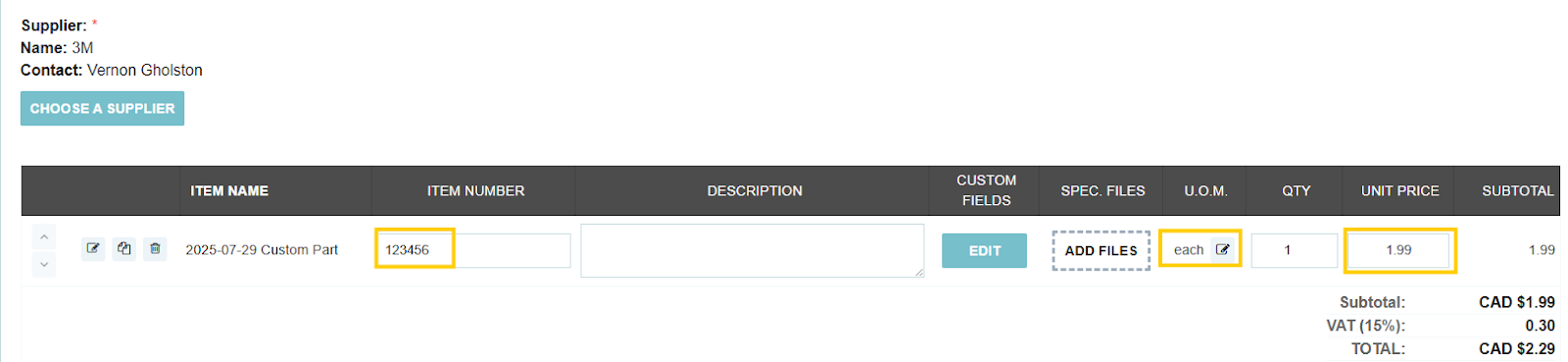
- When you then select and add the item to the PO, the item will automatically populate with that supplier's specific price, saving you the time of manual entry.
Thank you! Your submission has been received!
Oops! Something went wrong while submitting the form.
.webp)
.png)


