


What are the “Use Tradogram for” dropdown options under the company profile section, and how do they work?
Tradogram is a versatile platform that supports both sides of the supply chain. The "Use Tradogram for" setting allows you to define whether your organization uses the platform primarily for Procurement (Buying), Sales (Selling), or Both.
Choosing the right mode ensures your sidebar and dashboard are optimized with the specific tools you need for your daily operations.
The Three Operational Modes
- Purchasing: Optimized for buyers. Your menu will focus on Requisitions, Purchase Orders, and Supplier Management.
- Sales: Optimized for vendors. Your menu will shift to focus on Sales Quotes, Sales Orders, and Customer Management.
- Both: This enables the "Dual Portal" experience, allowing you to act as a buyer for your overhead needs and a seller for your customers.
How to Enable and Toggle Between Views
1. Configuration (Admins Only)
To enable these modules, a Company Admin must:
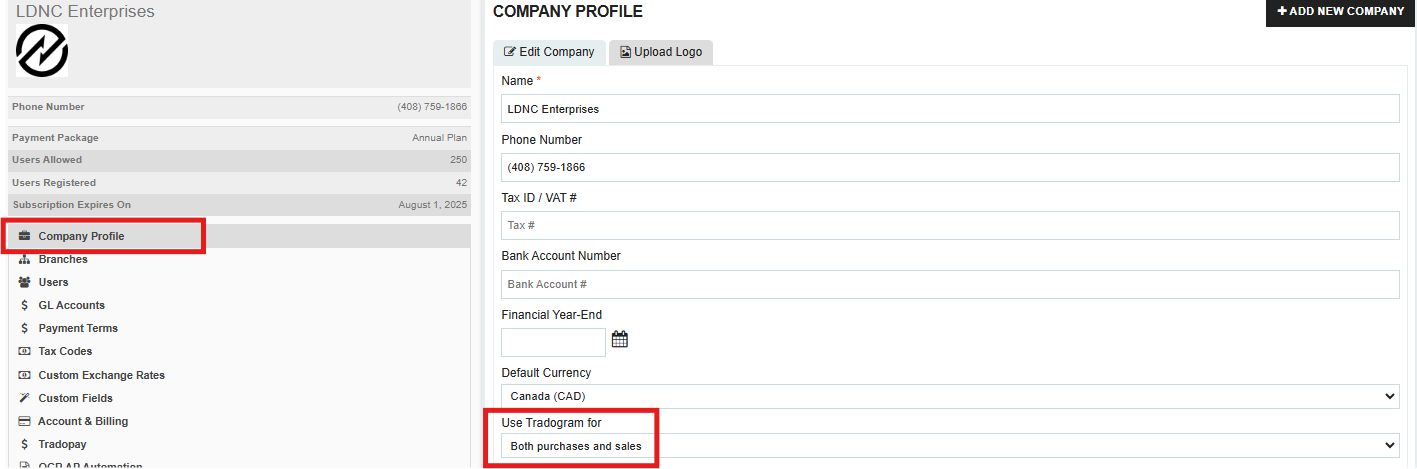
- Navigate to Company Profile.
- Locate the "Use Tradogram for" dropdown menu.
- Select your preferred mode and click Save.
2. Toggling the View
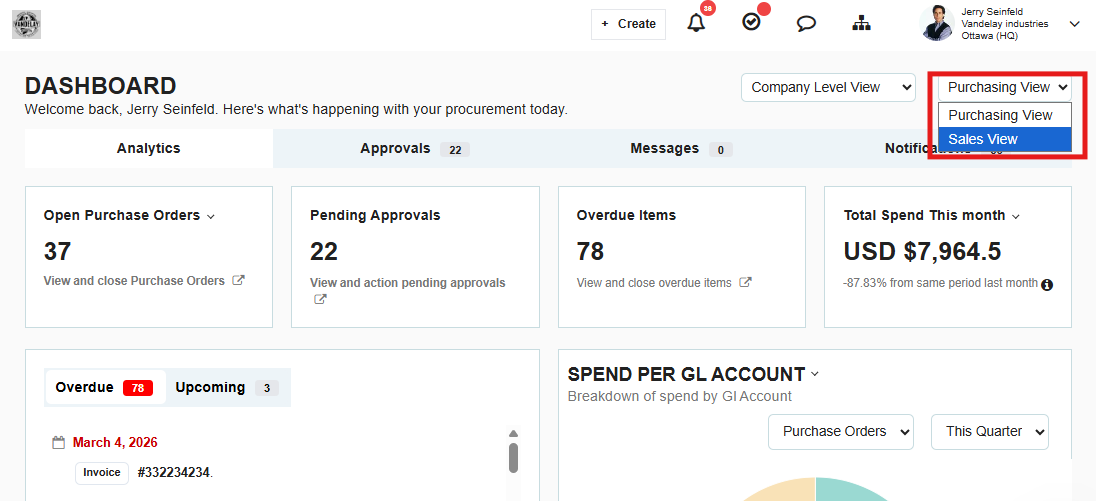
If you select "Both," you don't have to look at everything at once. You can switch between "Purchasing Mode" and "Sales Mode" instantly:
- Go to your Dashboard.
- In the bottom-left corner of the navigation sidebar (or the top of the dashboard), click the Toggle Button to switch views.
- The Transformation: You will notice your left-hand menu updates immediately. For example, "Suppliers" will change to "Customers," and "Purchase Orders" will change to "Sales Orders."
Thank you! Your submission has been received!
Oops! Something went wrong while submitting the form.
.webp)
.png)


