


Handling Delivery Discrepancies and Damaged Goods
In procurement, what is promised on a packing slip doesn't always match what arrives at your door. Tradogram provides a clear way to document these discrepancies to ensure your records—and your payments—are accurate.
How to Record a Discrepancy
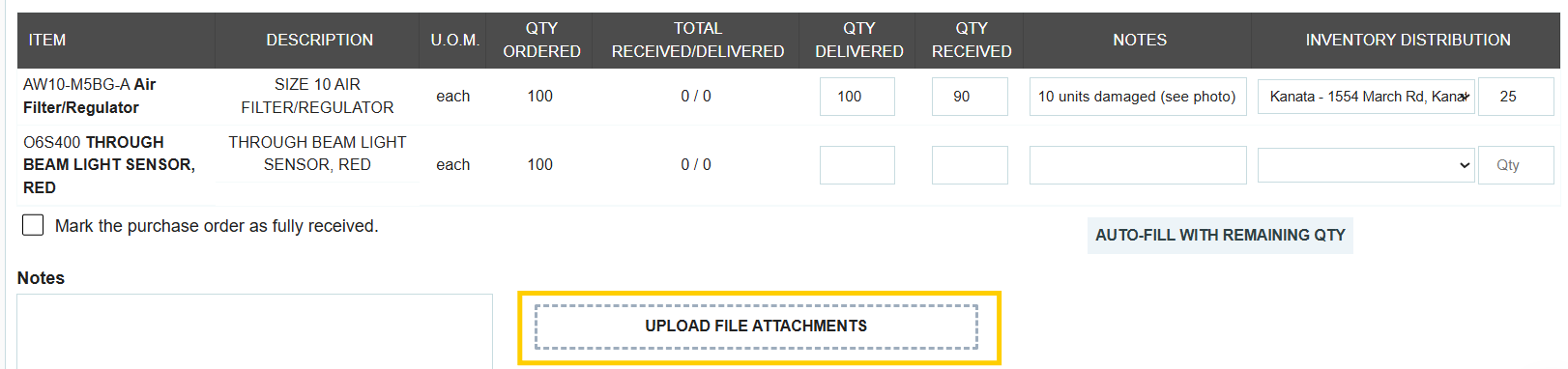
When you book a delivery, you can use the distinct quantity columns to highlight issues with a shipment:
- QTY Delivered: Enter the amount the supplier claims to have sent (the number on their delivery slip).

- QTY Received: Enter the amount you are confirming and accepting. This is the quantity that will be "booked in" to your system.

- Inventory Distribution: If you use the Inventory module, this value determines how much your actual stock levels will increase.

Example for Damaged Goods: If a supplier sends 100 units but 10 arrive broken, you would enter 100 in "QTY Delivered" and 90 in "QTY Received." This ensures you only acknowledge receipt of the 90 usable items.

Documenting the Details
To protect your organization and provide clarity for the supplier or your accounting team:
- Line Item Notes: Use the notes field next to each item to specify why there is a discrepancy (e.g., "10 units arrived with water damage to the packaging").

- Attachments: Use the attachments section to upload photos of the damaged goods or a scanned copy of the marked-up delivery slip as physical evidence.
Viewing the Delivery Summary
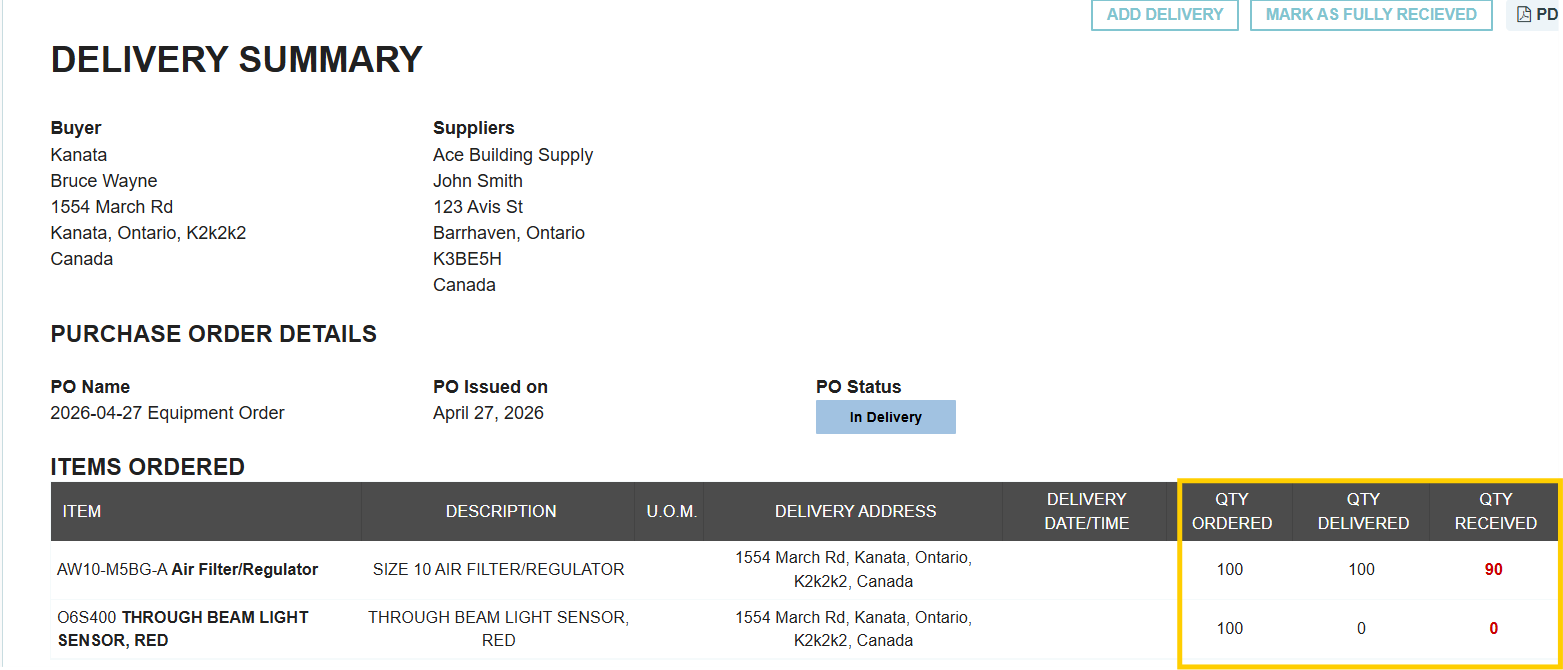
A single Purchase Order can have multiple partial deliveries. To see the "big picture" for an entire order:
- Navigate to Transactions → Deliveries.
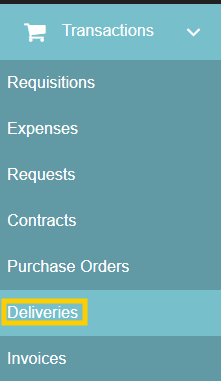
- Locate your Purchase Order and click the Delivery Summary button.

- Discrepancy Alerts: The system will automatically highlight any discrepancies between delivered and received totals in red, making it easy to spot issues across multiple shipments.
Thank you! Your submission has been received!
Oops! Something went wrong while submitting the form.
.webp)
.png)


