


Import Error - CSV column headers do not match

This error indicates that the column headers in the CSV file you are attempting to import do not exactly match the headers provided in the official Tradogram template. This prevents the system from correctly mapping your data.
Solutions
1. Use the Correct Template
The fastest way to resolve this issue is to use the official template:
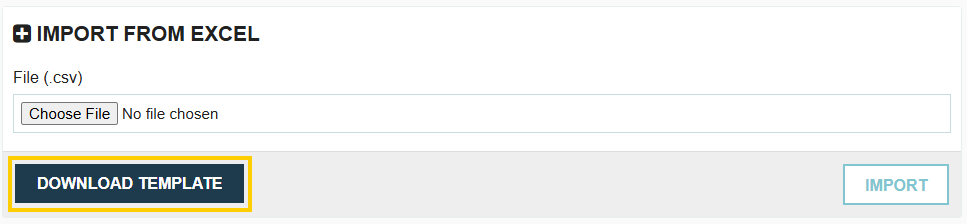
- Click the Download Template button to obtain the latest, correct file.
- Copy your existing data from your current import file into the newly downloaded template.
- Save and re-upload the new file.
2. Verify File Formatting
The file must be saved in the correct format for successful import:
- Ensure the file is saved in the Windows CSV comma delimited format (CSV UTF-8).
- Crucial Check: The data fields in the file must be separated by commas. If you open the file in a text editor (like Notepad) and see semi-colons (;) instead of commas, you will need to adjust your computer's regional settings to ensure CSV files are saved with a comma separator.
3. Review for "Re-Import" Files
If you are "re-importing" a file that was originally exported from Tradogram (typically to update existing records), be aware of these constraints:
- The file must retain the "code" column (usually Column A). This unique code is what the system uses to link the row back to the existing entry on your account.
- You cannot add new rows (new items/suppliers) to a file that is used for "re-import." Rows without a code will cause an error, as the system only expects to update records, not create new ones.
Thank you! Your submission has been received!
Oops! Something went wrong while submitting the form.
.webp)
.png)


