


Where can email settings be configured?
For each user, there are settings that allow the user to manage the types of email notifications they receive. These settings apply per user, which means each user can configure their own options and may receive different email notifications.
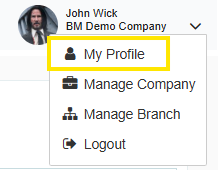
To manage these notifications, navigate to the drop-down arrow in the top right corner, and select My Profile.
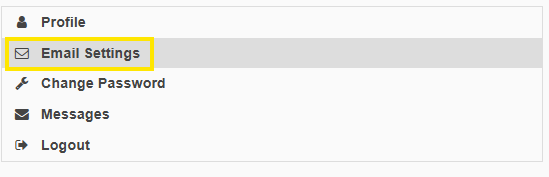
Next, navigate to “Email Settings” in the menu:
Here is a list of the Notifications that a user can toggle:

By default, the user’s notifications will go to the email account used to set up the account. Users can choose to have email notifications CC’d to one other email.

The alerts listed in the tables above will also send an email to the user.

Any time a transaction that the user created reaches the due date, the user will be notified

For users who approve transactions, an email can be set to send in intervals that include a list of all transactions where the user is the current approver. This reminder can be set at any interval between every day, and every 10 days.

An email will be sent to the user when they are tagged in a message from an internal Tradogram user.
A notification will also be sent when the user has created a transaction, and the supplier uses the external messaging option to send a message.

If the user is an approver, this setting will mark the approver as away, and any approval rules that include an alternate approver will notify the alternate approver will be notified by default instead of the main approver.

This notification occurs when a user has created a purchase order, and an invoice record is added to the purchase order before a delivery is added to the purchase order.
On the User Profile section, there is one setting that will allot you to control the notification emails for supplier file due dates.

At the bottom of the list of settings, you will see Send Supplier file due date reminder. This can be set to: 1 day, 3 days, 1 week, 2 weeks, or 1 month before the due date. The supplier due date reminder will be sent to the user who set the due date.
.webp)
.png)


