


What to Do If an Invoice Is Marked as "Paid" by Mistake
If you or a team member accidentally selects the Mark as Paid option, the action is easily reversible. Returning the invoice to its previous state ensures your financial tracking remains accurate.
How to Reverse the Payment Status
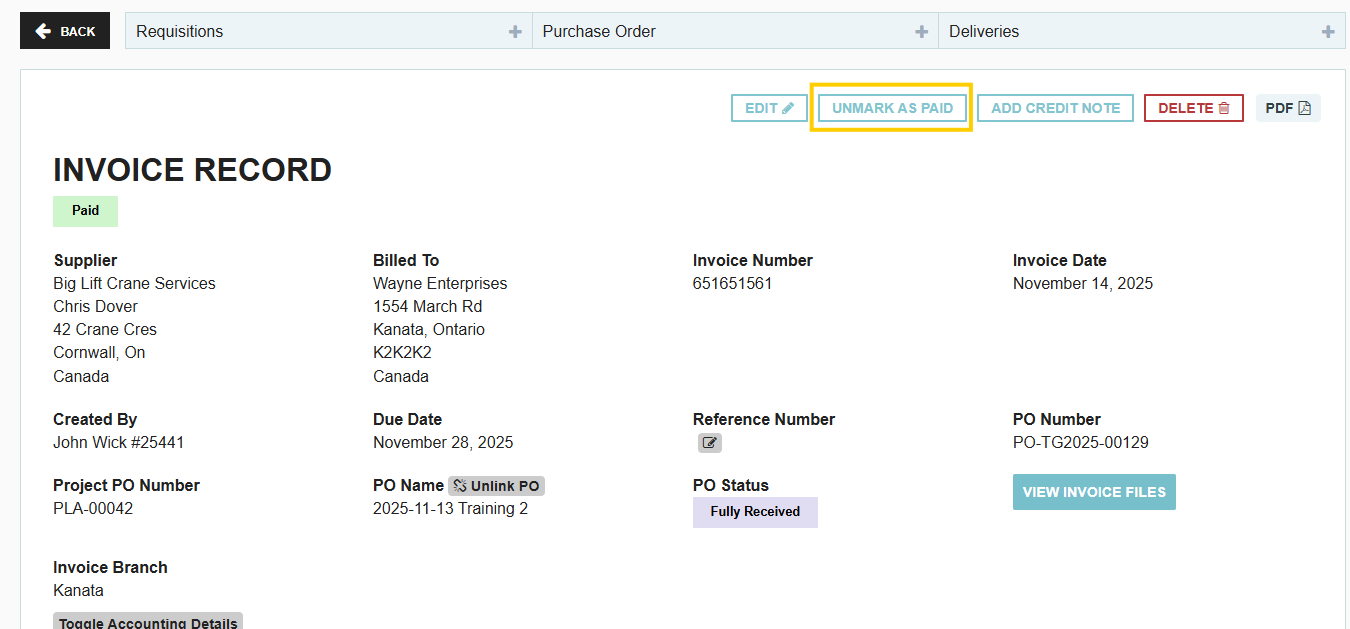
To return the invoice to its previous state, you can manually toggle the status back:
- Open the Invoice: Locate the specific invoice record that was marked as paid.
- Select "Unmark as Paid": Look for the action button labeled Unmark as Paid (typically found at the top of the invoice view).
- Automatic Reversion: Once selected, the invoice status will instantly revert to "Approved for Payment."
Why Tracking "Paid" Status is Important
Marking invoices as paid is a vital step for the procurement team because it provides a clear hand-off between procurement and accounting. It allows the team to:
- Track Order Lifecycle: See at a glance which orders are completely finalized and which are still awaiting settlement.
- Prevent Duplicate Payments: Ensure that finance teams do not accidentally pay the same invoice twice.
- Accurate Reporting: Generate spend reports that distinguish between "Invoiced" (money owed) and "Paid" (cash spent).
Important Considerations
- Associated Deliveries: Details about any associated deliveries can still be updated even if an invoice is marked as paid. This allows you to maintain accurate inventory records regardless of the financial status.
- Permissions: If you do not see the "Unmark as Paid" option, you may need to contact your Company Admin to verify your user permissions for managing invoice statuses.
Thank you! Your submission has been received!
Oops! Something went wrong while submitting the form.
.webp)
.png)


