


Fillable Form Templates: A Complete Guide
Fillable Form Templates are custom data collection tools used to standardize information across your procurement process. They allow you to capture details that aren't covered by standard system fields.
What are Fillable Forms Used For?
Fillable forms help you gather structured data for analysis, compliance, and comparison. Common uses include:
- Performance Reviews: Evaluating supplier service levels.
- Technical Specs: Collecting specific item measurements or requirements.
- Bid Comparisons: Using "Target Values" and "Weighting" in Requests to have the system automatically calculate a percentage match for each supplier’s offer.
Fillable Form Types and Fields
When creating a form, you first decide where it will be used and what types of data it will collect.
Where Forms Can Be Applied:
- Requisitions: These are internal only. They are used to collect extra details from your team members when they request goods or services.
- Requests: These can be used internally or externally. You can fill them out when creating a bid, or send them to vendors to complete as part of their proposal.
- Suppliers: These are internal only. They are used to store custom data or notes directly on a supplier’s profile.
Available Field Types:
To ensure data consistency, you can choose from several field types:
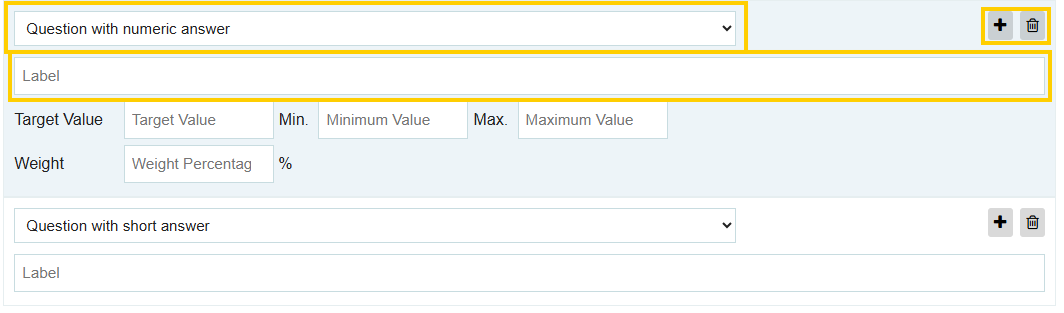
- Short Answer: Best for brief text like a model number or a specific contact name.

- Long Answer: Best for descriptions, comments, or detailed explanations.

- Numeric Answer: Restricts the input to numbers only (useful for measurements).

- Summable Numeric Answer: A numeric field that the system can total at the bottom of the form.

- Dropdown of Available Suppliers: Allows the user to select a specific vendor from your Tradogram database.

Formatting Tools:
- Header Line: Used to create sections or categories within a long form to keep it organized.

- Blank Line: Acts as a spacer to improve the visual flow and readability of the form.

How to Create a Fillable Form
Follow these steps to build your custom template:
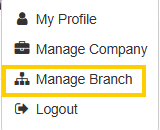
- Click the dropdown menu at the top right and select Manage Branch.
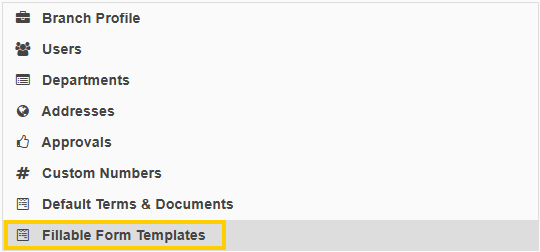
- Choose Fillable Form Templates from the left-hand panel.
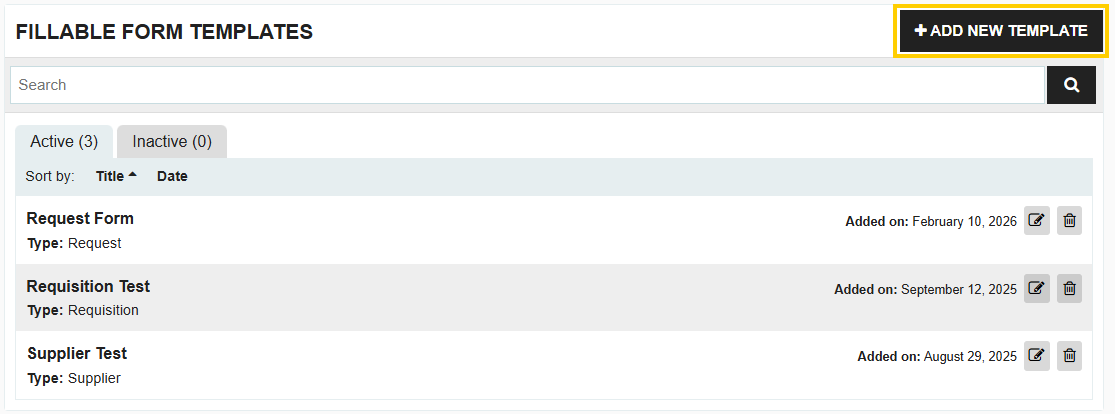
- Click the Add New Template button at the top right.
- Configure your fillable form template
- Name your template and select the Apply To location (Requisition, Request, or Supplier)

- Add your questions, and select the appropriate Field Type and Label (field name) for each.
- Use Header Lines & Blank Lines to group related questions.

- Save: Click Save Template at the bottom right.
Pro Tip: If you are creating a form for a Request, remember that you can view a side-by-side Fillable Form Comparison once your suppliers have submitted their responses.
Deleting vs. Marking Inactive
If you no longer need a form to appear in your active transactions, you have two options:
- Marking as Inactive: This prevents the form from appearing in new transactions but allows you to reactivate it later. To do this, click Edit on the template and change the Template Status dropdown to "Inactive."
- Deleting: This irreversibly removes the form from the system. This should only be done if you are certain the template will never be needed again. To delete, click the Trash Can icon next to the template.
.webp)
.png)


