


What happens when a delivery note is received from a supplier?
In Tradogram, the delivery note process bridges the gap between a supplier shipping an order and your team physically receiving it. This workflow allows for real-time collaboration and accurate inventory tracking.
Requesting a Delivery Note
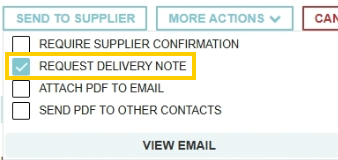
When you are ready to issue a Purchase Order (PO), you have the option to check a box to Request a Delivery Note. This tells the supplier that you expect them to provide shipping details through the platform.
The Supplier’s Role
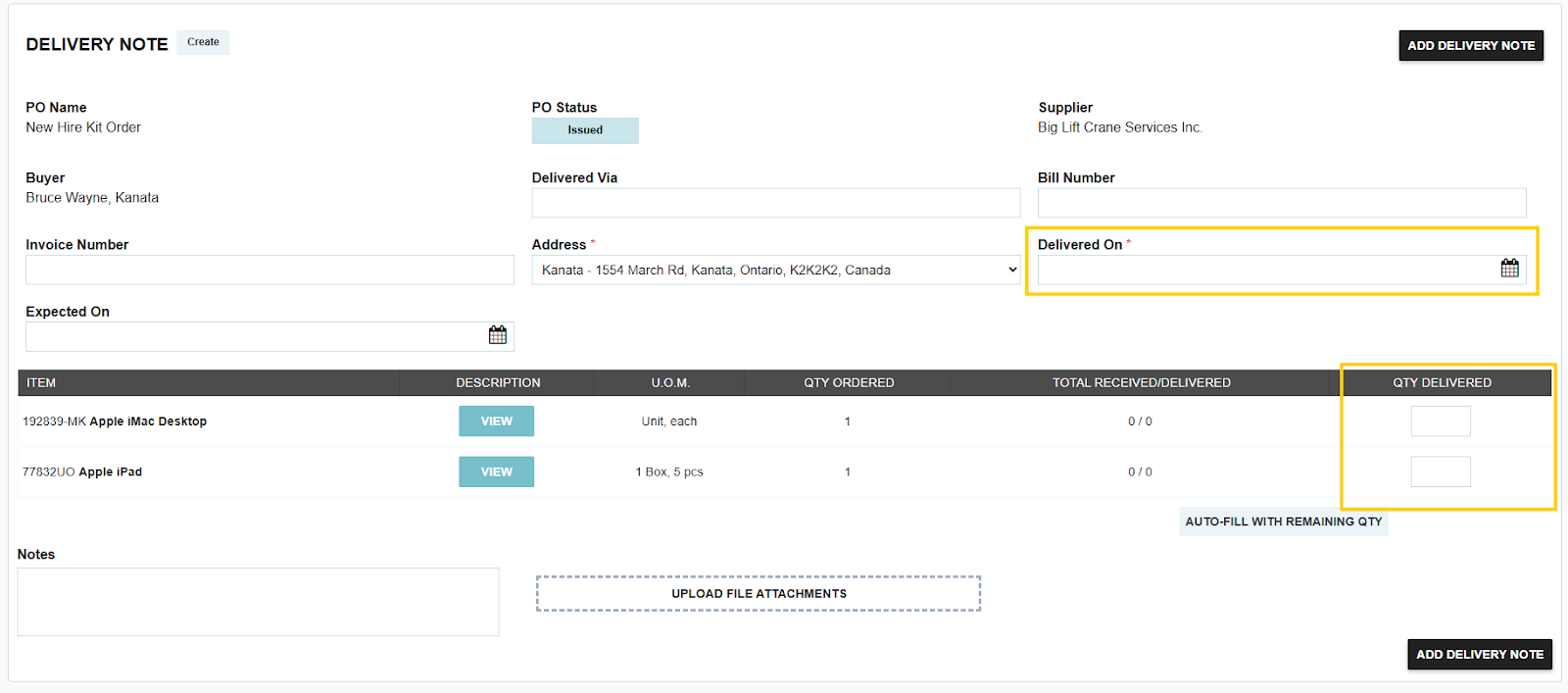
The supplier receives an email notification with a secure link. They do not need a full Tradogram account to participate; they can use a virtual portal to:
- Enter the quantities being shipped.
- Provide tracking numbers or shipping dates.
- Submit the digital delivery note directly back to your account.
Notification and Alert
As soon as the supplier submits the delivery note:
- The user who created the PO will receive an in-app notification (and an email if their personal notification settings are enabled).

- The entry will automatically appear in your Deliveries listing overview page with a status indicating it has been submitted by the vendor.

"Booking In" the Delivery
Receiving the digital note is only the first half of the process. Once the physical goods arrive at your facility, you must "Book In" the delivery to confirm accuracy:
- Navigate to Transactions > Deliveries.
- Select the delivery note submitted by the supplier.
- Confirm or update the Qty Received and the Received on Date.
- Save the record to finalize the receipt and update the PO status.
Important Considerations
- Manual Entries: If a supplier does not use the digital link and instead sends a paper packing slip, your users can always manually add a delivery in Tradogram to keep your records up to date.
- Inventory Distribution: Remember that "Booking In" the delivery confirms receipt, but you must also fill out the Inventory Distribution section if you wish to increase your warehouse stock levels.
.webp)
.png)


