


How can I manage users across multiple companies?
In Tradogram, you have the ability to establish and manage multiple separate company entities within a single account. Each company operates as its own distinct instance, allowing for organized procurement across different business units while maintaining a unified management interface.
Setting Up Multiple Companies
Before you can expand your account to include a new entity, reach out to support@tradogram.com or your Customer Success Manager to have this feature enabled. Once enabled, you can add a company by following these steps:
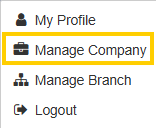
- Navigate to the Manage Company section.
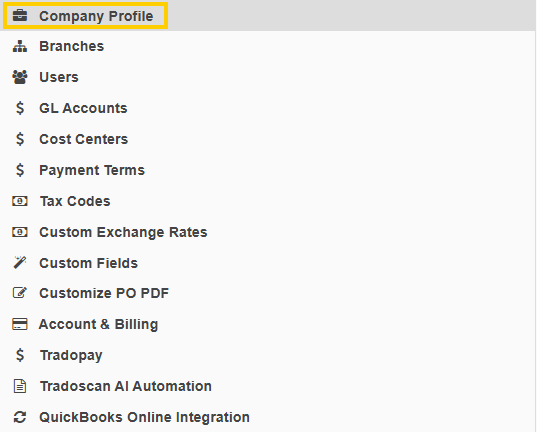
- Select the Company Profile tab.
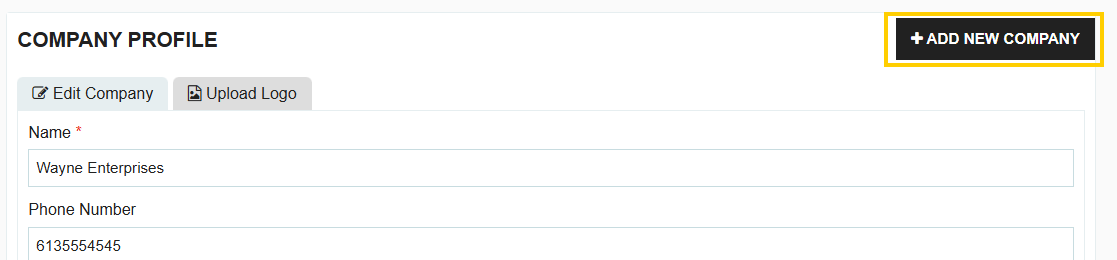
- Click Add New Company.
Navigating Between Companies
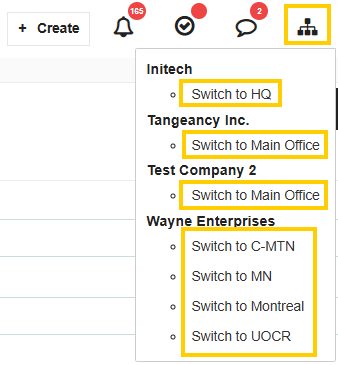
Once multiple companies are registered, you can switch between them using the toggle menu at the top right of your screen.
- Company Identification: In the toggle menu, company names are denoted by bold text.
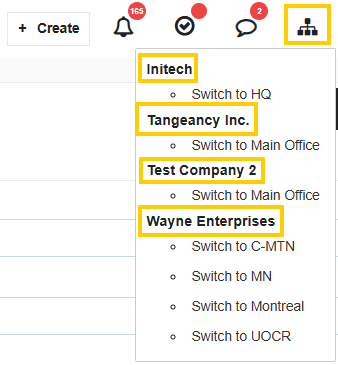
- Branch Navigation: Individual branches associated with each company are listed beneath the bolded company name.
User Access and Permissions
It is important to understand how permissions function when managing users across different entities:
- Global Permissions: Permissions are operated at a global level. This means if a user exists in one company, their functional permissions (e.g., Purchaser or Requisitioner) will remain the same regardless of how many branches or companies they are associated with.
- Role Limitations: If you require a user to have different roles in different companies (for example, a Requisitioner in Company A but an Approver in Company B), you must create a separate user account for each role to achieve this distinction.
Adding an Existing User to Another Company
If you have an active user in Company A and wish to grant them access to Company B, you can utilize the "Add Existing User" feature to maintain account consistency:
- Switch to the company you wish to add the user to (e.g., Company B) using the top-right toggle menu.
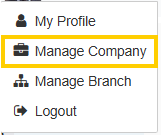
- Navigate to Manage Company.
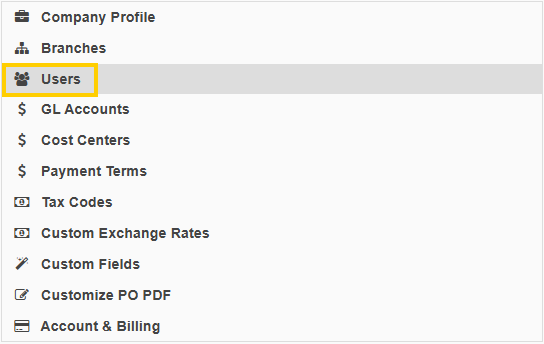
- Select the Users tab.
- Click to add a new user.
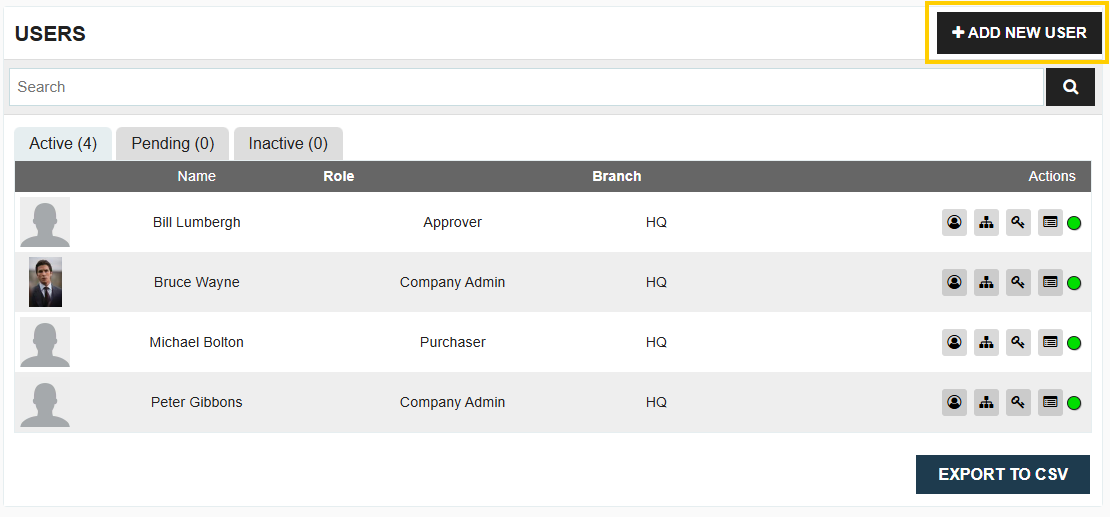
- In the top right-hand corner of the screen, click the ADD EXISTING USER button.
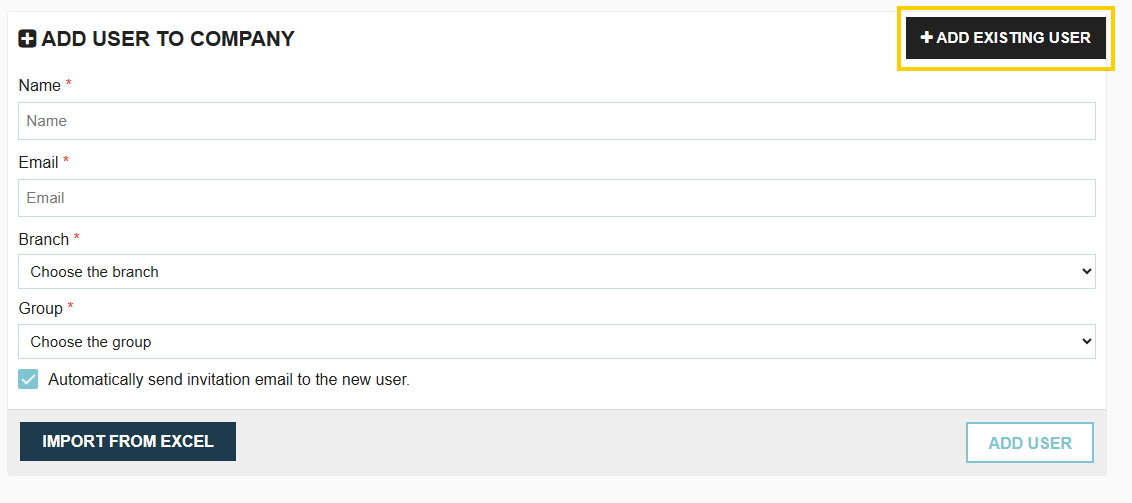
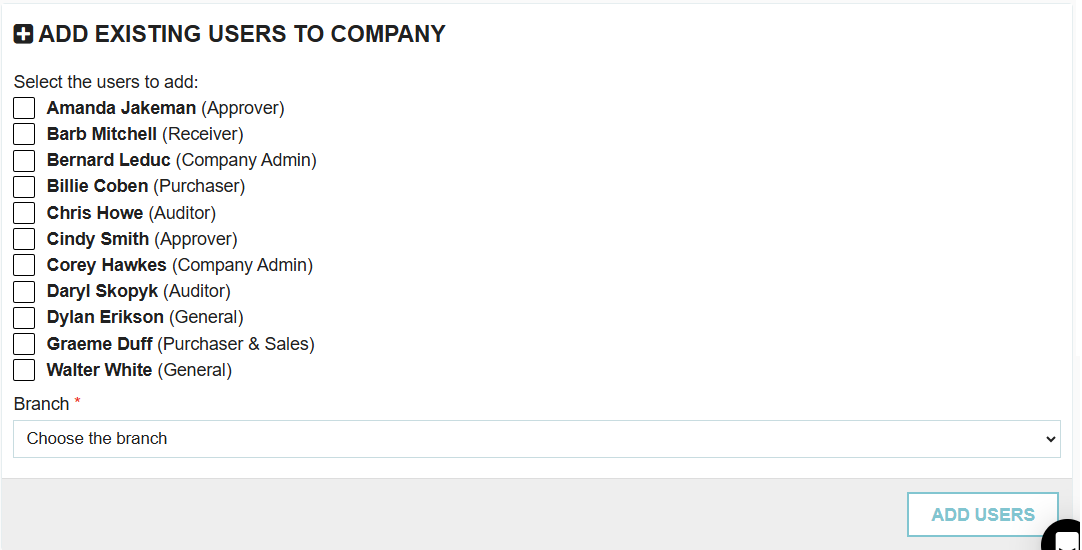
- A window will appear displaying a list of all users who are active in another connected company but are not yet active in your current company.
- You can multi-select the individuals you wish to include and add them to the new company.
Licensing Requirements
Because each company within Tradogram is considered its own separate instance, licensing is calculated based on total access points:
- Users require a license for each company they are granted access to.
- For example, if you have three users who each need access to two different companies, you will require a total of six licenses to cover their seats across those separate instances.
.webp)
.png)


