


If an approval for an invoice is granted by mistake, is there any way to revoke the approval?
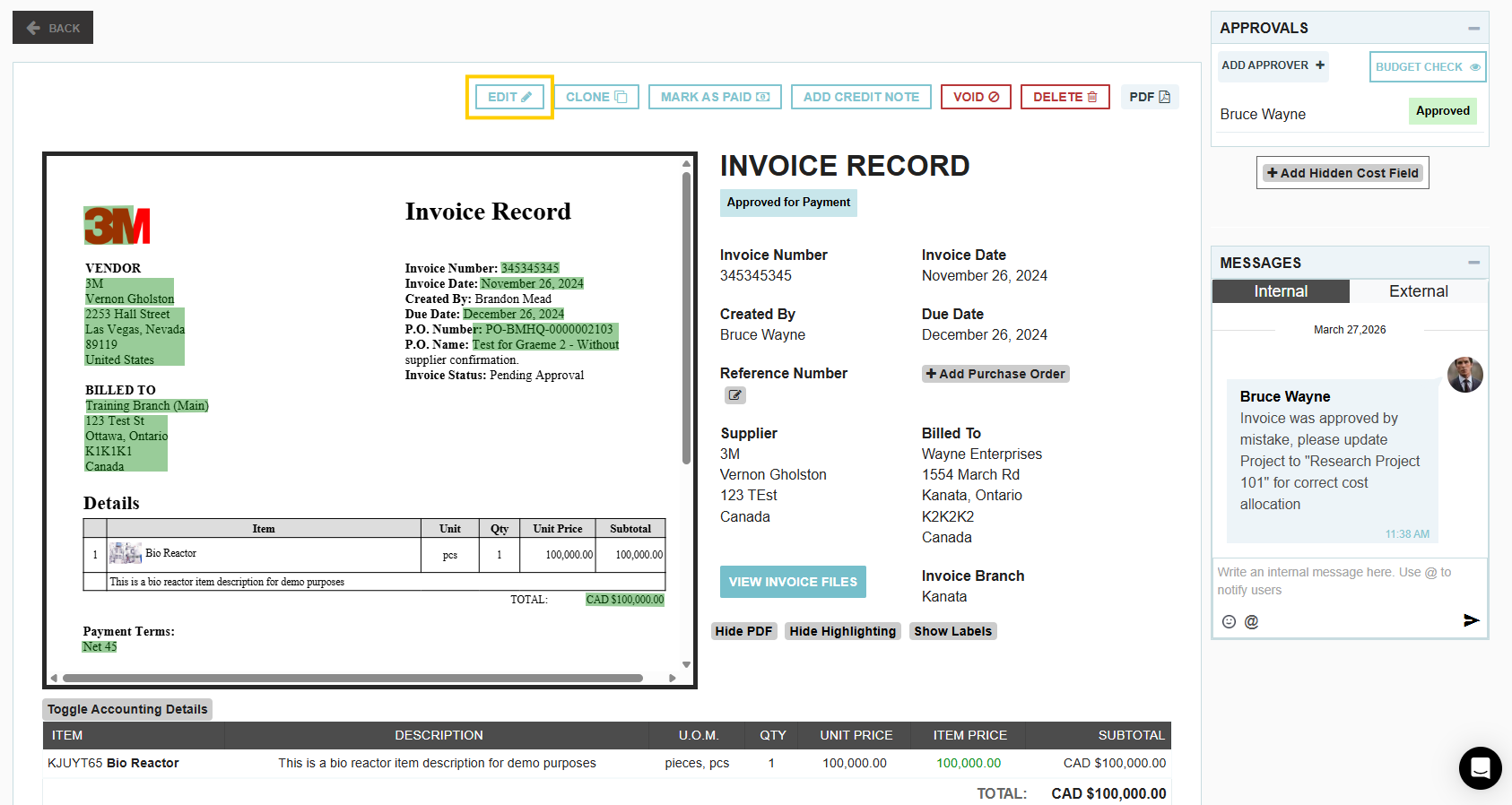
If an invoice is approved by mistake, the process for revoking that approval and making corrections mirrors the standard transaction workflow in Tradogram. You do not need to start over; instead, you can treat the error as a live adjustment period to ensure your financial records are accurate.
How to Adjust and Resubmit an Invoice
When an approval needs to be revoked or an invoice requires changes after a mistake is identified, the system allows you to unlock the record for editing. Follow these steps:
- Review the Discrepancy: Check the Comments or Messages section of the invoice. Often, team members or accounting staff will leave a note explaining why the initial approval was incorrect (e.g., wrong GL account, tax error, or mismatched quantity).
- Unlock the Invoice: Open the approved invoice record. If the system allows for a rollback or "Edit" phase, click the Edit (pencil) icon to unlock the fields.
- Apply Changes: Adjust the line items, tax details, or payment terms based on the corrected information.
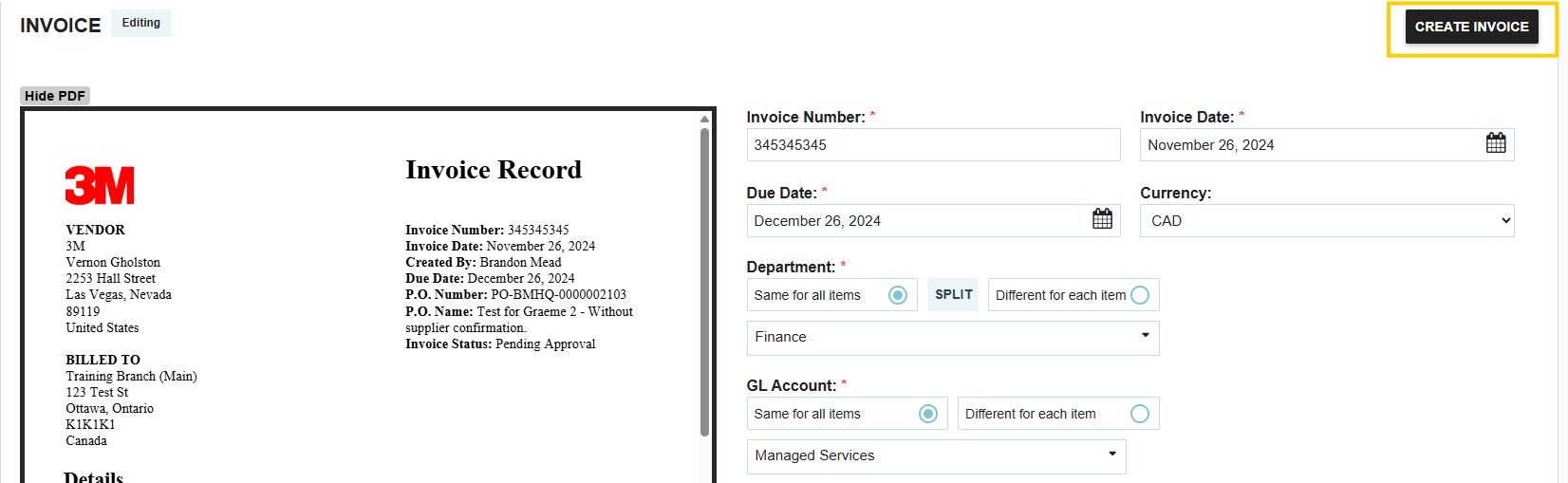
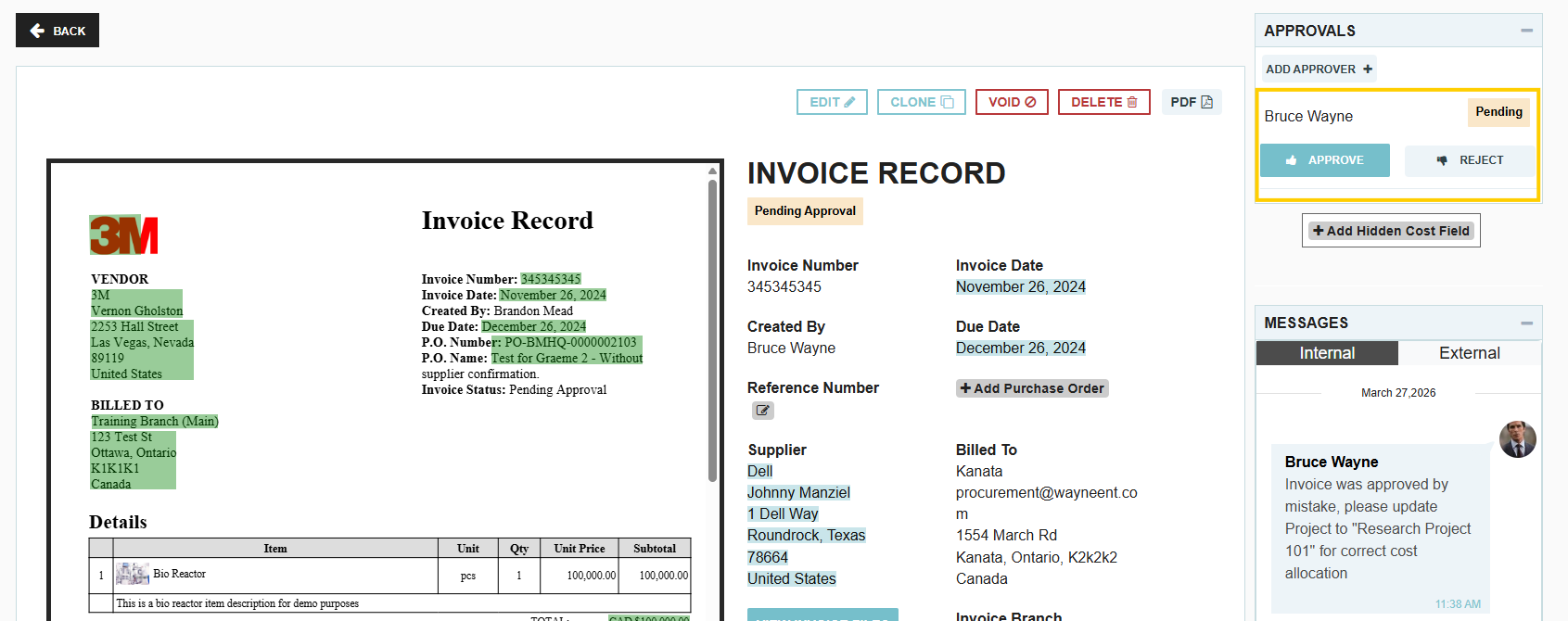
- Resend for Approval: Once your changes are saved, click the Submit button. This will restart the approval workflow and notify the designated approvers that a revised version is ready for review.
Key Workflow Details
- Audit Trail: The system maintains a history of the invoice, allowing you to track exactly what was changed between the original mistaken approval and the corrected version.
- Notifications: Once you resubmit the invoice, the relevant approvers will receive a new notification to review the updates in their portal.
- Collaboration: Using the Messages feature throughout this process is highly recommended to ensure all stakeholders—including the requester and the accounts payable team—are aligned before the final approval is granted.
Thank you! Your submission has been received!
Oops! Something went wrong while submitting the form.
.webp)
.png)


