


What are departments used for?
Departments are broad functional units (e.g., Sales, HR, Finance) within your company that allow for additional structural and financial control beyond the branch level. They are essential for segmenting business functions that may generate revenue or incur specific costs.
The Role of Departments in Procurement
Departments allow you to configure granular control over your purchasing processes:
- Department-Based Budgets: You can create Tradogram budgets using departments, allowing you to set and track spending limits that are specific to that functional group.
- Custom Workflows: Departments can be used to further customize approval routes, ensuring rules are specific to that functional group.
- Key Roles: When setting up a department, you define:
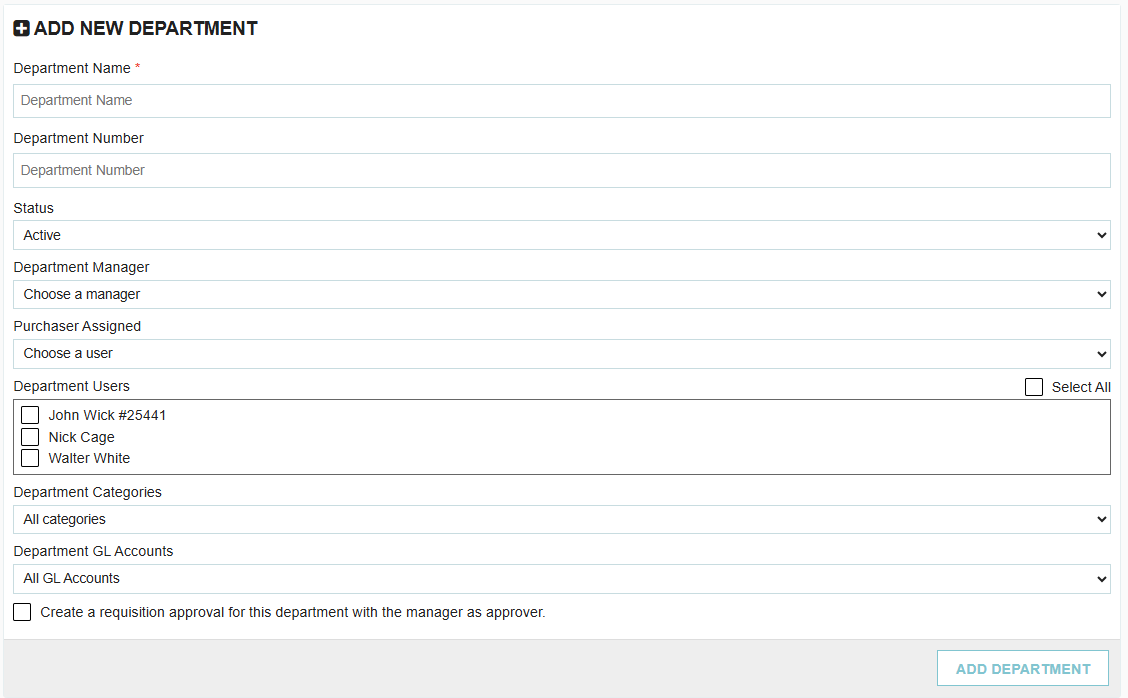
- Department Manager: The designated leader, often used as an approver.

- Purchaser Assigned: This user receives notifications when requisitions assigned to the department are approved and are ready to be converted into a Purchase Order or Request.

- Department Users: Users who have the ability to assign transactions to this department.

Restriction and Control Settings (optional)
When creating a department, you can set powerful restrictions to maintain compliance and accuracy:
- Department Categories: A restriction-based selection where you choose specific item categories that this department is allowed to purchase from. When creating a transaction for this department, users can only choose items from the selected categories.

- Department GL Accounts: A restriction-based selection where you choose specific GL Accounts that this department is allowed to use. When creating a transaction, users can only select the pre-approved GL accounts.
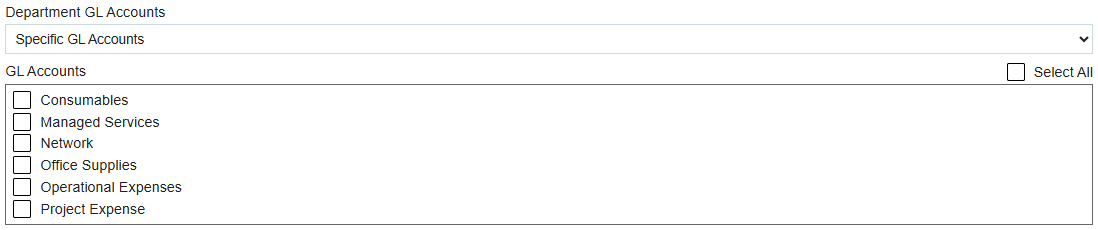
- Automatic Approval Rule: You have the option to automatically create a requisition approval rule where the Department Manager is set as the approver for all requisitions assigned to this department.

How to Create a Department
To set up a new department:
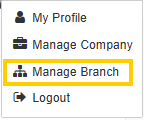
- Go to Manage Branch from the top-right dropdown menu.
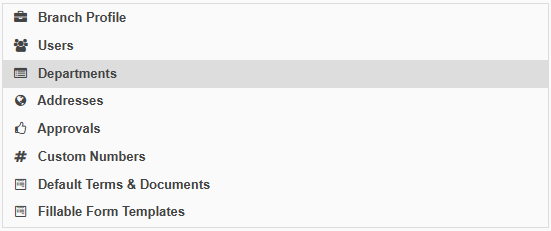
- Navigate to the Departments tab.
- Click + ADD NEW DEPARTMENT
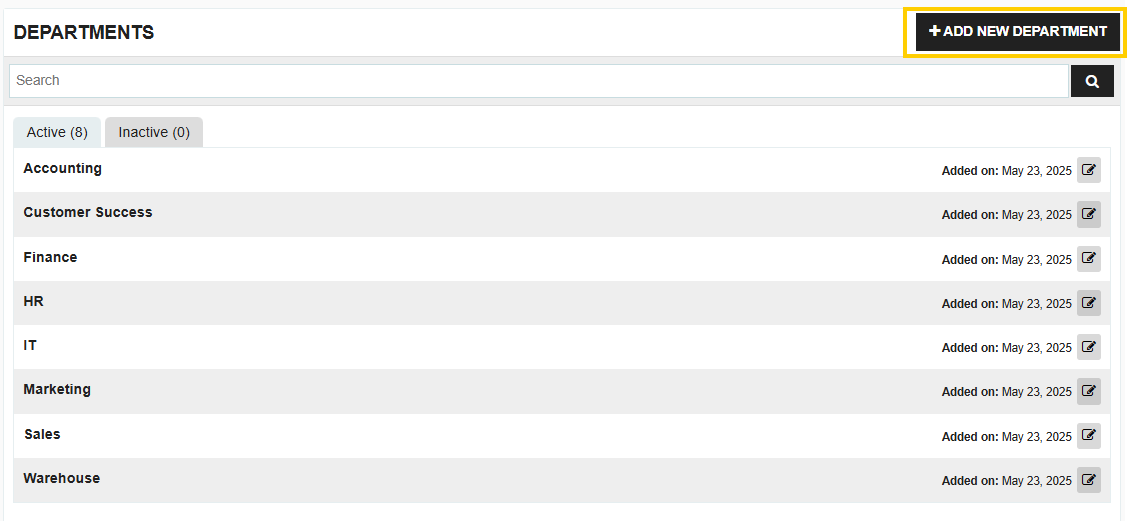
- Fill in the required details, including the Department Name.
View a guided tutorial on creating departments here.
Thank you! Your submission has been received!
Oops! Something went wrong while submitting the form.
.webp)
.png)


