


What is the “Inactive” tab for in the project listing overview?
The Inactive tab serves as a secure archive for all completed, cancelled, or closed projects. Rather than deleting a project and losing its financial history, moving it to the "Inactive" tab removes it from your daily workspace while preserving every transaction, attachment, and comment for future auditing.
Why Use the Inactive Tab?
Moving a project to the Inactive state provides several key benefits for your team:
- Cleaner Dropdown Menus: Inactive projects will no longer appear as options when users are creating new Requisitions or Purchase Orders. This prevents "accidental coding" to closed budgets.
- Historical Preservation: All spend data, approval logs, and documents associated with an inactive project remain fully searchable in your reports.
- Improved Performance: By keeping only "Live" projects in the Active tab, your Project Listing page remains fast and easy to navigate.
How to Move a Project to Inactive
If a project has reached its end date or has been fully billed, you can archive it in a few clicks:
- Navigate to the Projects module from the left-hand menu.
- Locate the project in the Active tab.
- Click the Edit (pencil) icon under the "Actions" column.
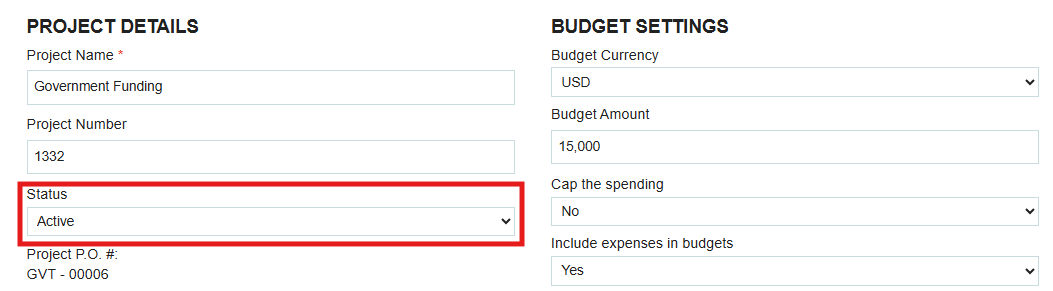
- Find the Status dropdown and change it from "Active" to "Inactive."
- Click Save.
Can I Reactivate a Project?
Yes. If a late invoice arrives or a project is renewed, you can simply go to the Inactive tab, find the project, and toggle its status back to "Active." It will immediately reappear in all selection menus across the platform.
Thank you! Your submission has been received!
Oops! Something went wrong while submitting the form.
.webp)
.png)


