


How to Customize Purchase Order PDFs
Tradogram provides flexible options to customize the Purchase Order PDF and the accompanying email sent to your suppliers. This ensures your documents align with your company's branding and communication standards.
To access these settings:
- Navigate to Manage Company from the top-right dropdown menu
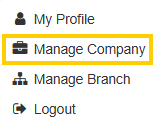
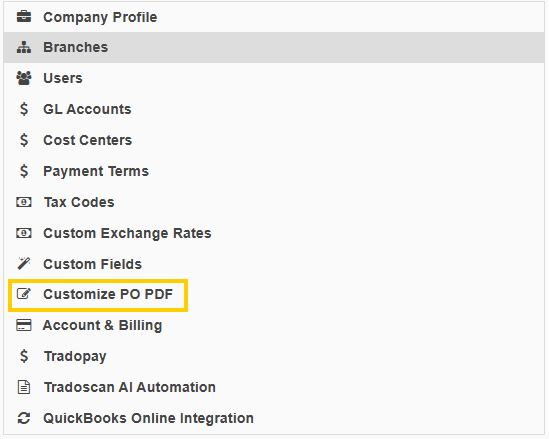
- Select Customize PO PDF.
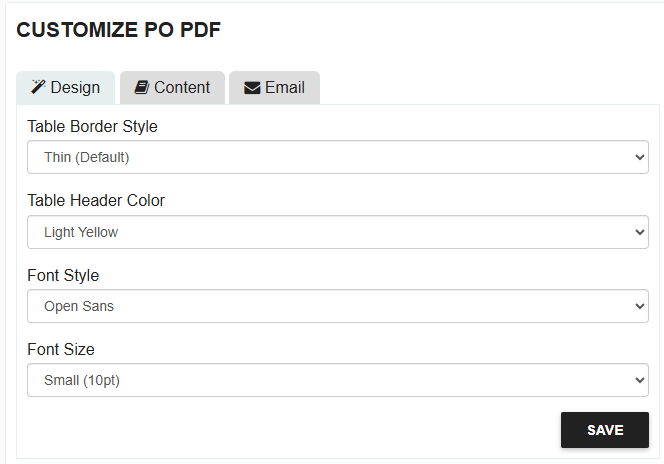
Design
The Design section allows you to control the visual aesthetic of the document:
- Table Border Style: Choose the thickness of the lines within the line items table.
- Table Header Color: Change the background color of the header row on the line item table. You can select from the provided palette or enter a specific Hex Code for a custom color.
- Font Style: Select the font family that best represents your brand.
- Font Size: Adjust the text size to Small, Medium, or Large.
Content
The Content section defines which data points are visible to the supplier:
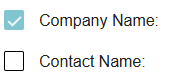
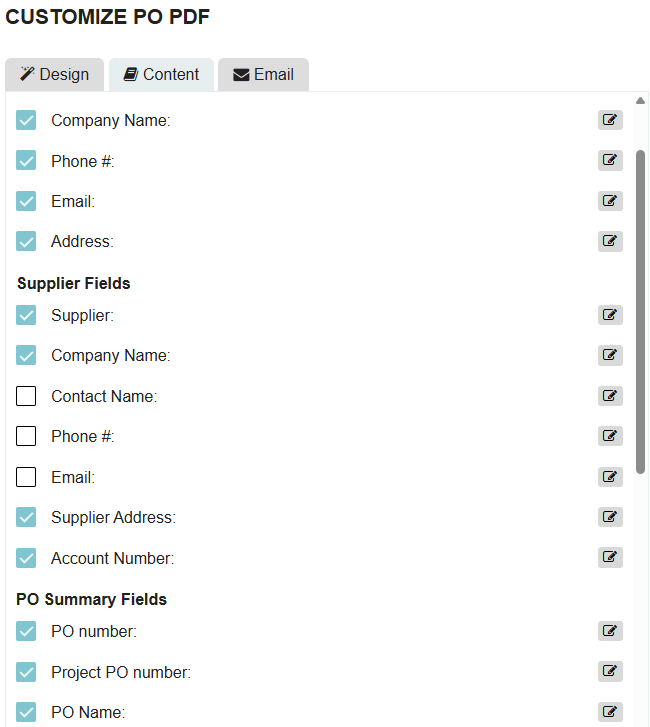
- Visibility: Use the checkboxes to show or hide specific fields. If a field is unchecked, it will not appear on the generated PDF.
Fields Available to show or hide:
- Bill To Fields
- Bill To
- Company Name
- Phone #
- Address
- Supplier Fields
- Supplier
- Company Name
- Contact Name
- Phone #
- Supplier Address
- Account Number
- PO Summary Fields
- PO Number
- Project PO Number
- PO Name
- Date Approved
- Created On
- Created By
- Status
- Delivery Date
- Version
- Delivery Address
- Delivery Address
- Location Name
- Address Info
- City
- State/Province
- ZIP/Postal Code
- Country
- Line Item Table
- Item Name
- Item Description
- UOM
- Quantity
- Unit Price
- Tax
- Subtotal
- Footer
- Project Summary
- Approvals Table
- Payment Terms
- Terms & Conditions
- Additional Notes
- Custom Labels: Click the Edit Icon next to any field to change the label shown to the supplier. This allows you to rename standard fields (e.g., changing "Delivery Date" to "Expected Arrival").

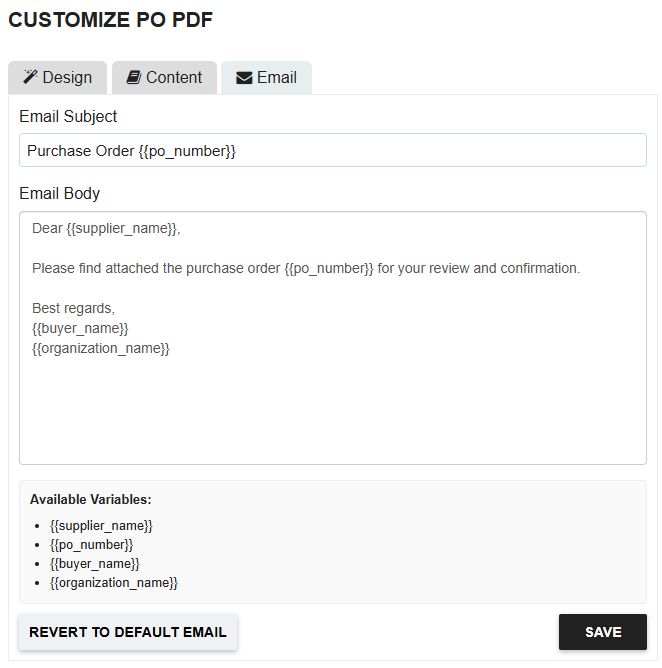
The Email section allows you to create a standardized template for the message that accompanies the PO:
- Subject and Body: Draft a custom subject line and message for your supplier communications.
- Variables: Use dynamic variables (placeholders) to automatically pull information like the PO Number or Supplier Name into the email, creating a personalized experience without manual typing.
- Available Variables:
- {{supplier_name}}
- {{po_number}}
- {{buyer_name}}
- {{organization_name}}
- Available Variables:
Thank you! Your submission has been received!
Oops! Something went wrong while submitting the form.
.webp)
.png)


